Features
Everything it takes to make an episode
Reelwright Studio is one app for the whole job: write the script, make the show's look, its cast and its sets, direct it, re-direct any moment of it, block it in 3D, edit the cut, voice it and render the finished cartoon. Each part is below, with pictures of the real thing.
Show
Open a show and see where it stands
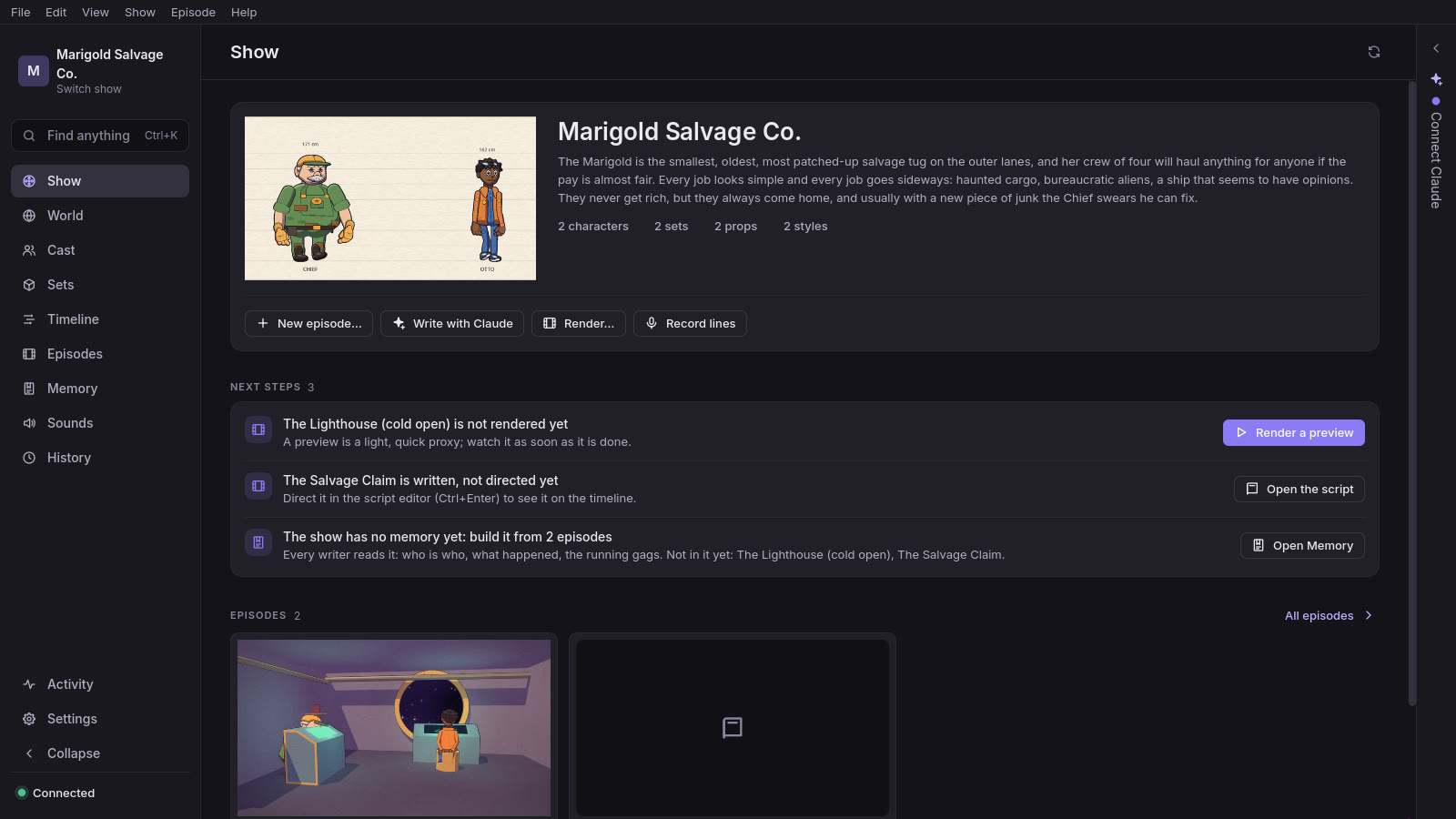
Studio opens each show on its dashboard: the cast lined up on its poster, its title and premise, and every episode with how far it has got.
- Every episode at a glance. Each has a card with a still, its running time and its state: an outline, a script, directed, voiced, recorded or rendered. A click opens its script or its timeline.
- The next steps, with their buttons. Render a preview, direct a written script, make the set an episode needs, voice its silent lines, review a proposal or update the show's memory, each from the line that says it.
- Start from the top. New episode, Write with Claude, Render and Record lines sit under the title, beside your latest decisions and their pictures.
- No dead ends. An empty view offers its first step: your first character, your first set, your first episode.
Script
Write a screenplay, and see how it will be read
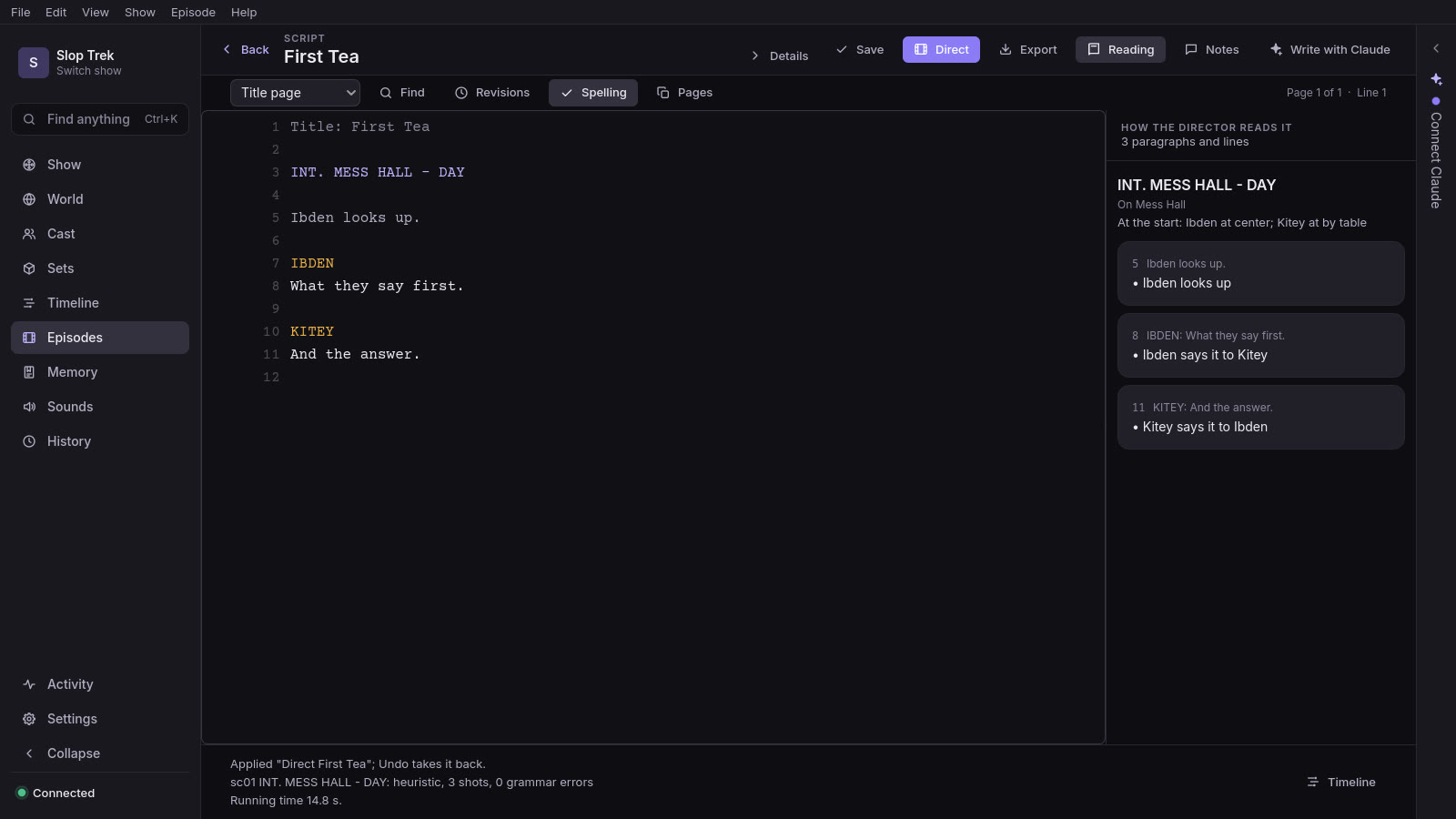
Episodes are Fountain screenplays: scene headings, action and dialogue in plain text. The script editor keeps the format for you as Final Draft does, and a moment after you stop, it reads the script the way the director will.
- A reading beside every line. Each action paragraph and line gets a card saying what will be staged, in your show's own words: “Otto walks up to the movie screen · Otto touches the movie screen”.
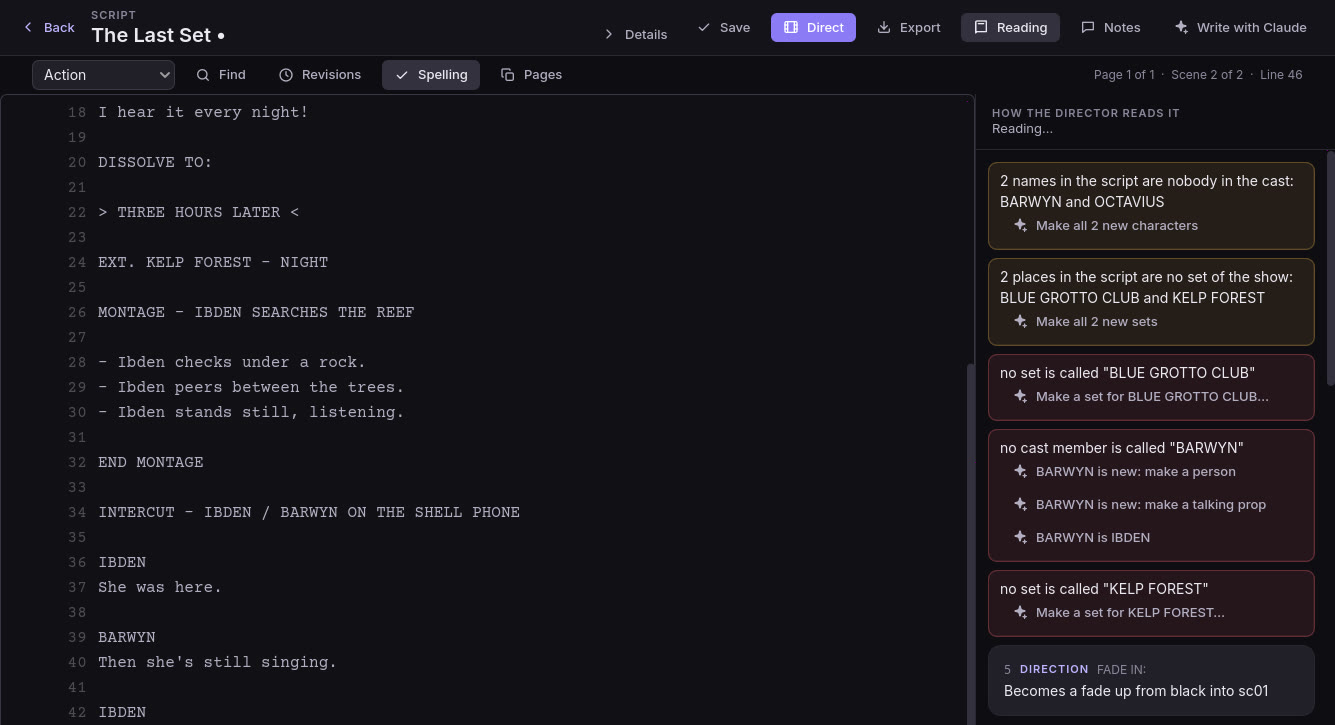
- Misreadings before you direct. Paragraphs the director will not act on, a sound the show does not have, a heading that names no set: each is flagged on its card and in the gutter.
- Fixed in one click. A misspelled cue offers the cast member it most likely meant (“Use CHIEF”). A sound the show lacks offers the nearest one it has, or makes one from the word. A thing the action handles that the show has no prop for offers “Make a prop called red lantern”, or “Make all 7 missing props” at once.
- New people and places, made on the spot. A speaker the cast lacks gets a button, “OCTAVIUS is new: make a person”, made from what the script says, with no model. It says what it makes before it makes it, the likeliest kind first, from how the script introduces them: “MEI, 11,” is a girl of eleven, “MOCHI, a fat orange cat,” a cat. A place no set answers to gets “Make a set for NIGHT MARKET…”, which lists the places it could be built from, the closest first (a market is a street of shopfronts), with the set's name filled in. Or give the name to someone or somewhere you have.
- Every screenplay form. FADE IN, DISSOLVE TO and FADE OUT are cut as edits, a time card or a SUPER puts words on screen, a MONTAGE is a run of short shots, and an INTERCUT cuts between two places, each side looking toward the other.
- Written as in Final Draft. Enter and Tab move between scene heading, action, character, parenthetical, dialogue and transition, and put in the capitals, the brackets and the blank lines for you. The element you are in is shown, and you can pick another. Names and places complete as you type: after INT. or EXT. the sets and their times of day, then a cue, a prop or a sound, the script's own as well as the show's.
- On the page. The script is set in Courier Prime on industry pages, laid out as its PDF prints, with page and scene numbers, (MORE) and (CONT'D). It shows where each page begins and says which page and scene you are on, the same on every computer and in the browser.
- Find, replace and spelling. Ctrl+F finds and Ctrl+H replaces, by case or by whole word, F3 goes to the next, and Replace all is one undo. Replace Mei with Lin, and MEI's cues read LIN. A wavy line marks a word the dictionary does not know, with suggestions on a right-click. It already knows your cast, sets and props and the script's own names, and works offline.
- Revisions and notes. Lock this draft, and every line changed since is marked with an asterisk in the revision's color: Blue, then Pink, Yellow and Green, on the script and its pages. Select lines and press Ctrl+Alt+M for a note beside them. Notes are answered and resolved, follow their lines as the text changes, and everyone in the show sees them as they are written.
- Direct from the keyboard. Ctrl+S saves, Ctrl+Enter directs, and the episode opens on the timeline where your paragraph plays. A double-click on the timeline brings you back to the words.
- Bring your Final Draft script, take out a PDF. Import script… opens a Final Draft or Fountain file as a new episode, dual dialogue, CONT'Ds and title page included. Export gives the script as an industry-format PDF, with (MORE) and CONT'D where a speech turns the page, a Final Draft file or Fountain, in the app or in the browser.
Writers' room
A writers' room that remembers the show
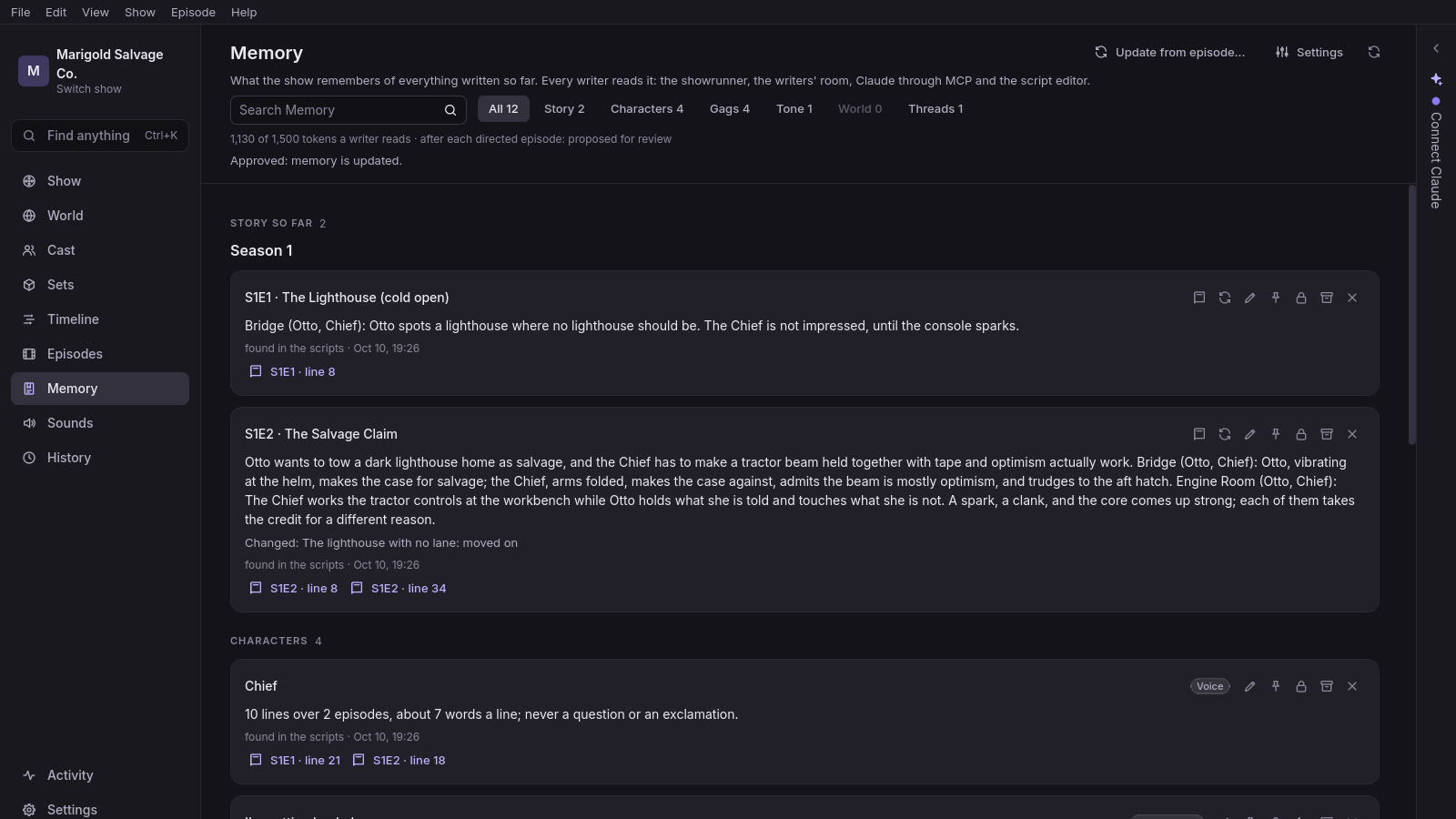
Each show keeps a memory of everything written so far, so later episodes keep its story, its voices and its jokes. Every writer reads it, and you can change any of it.
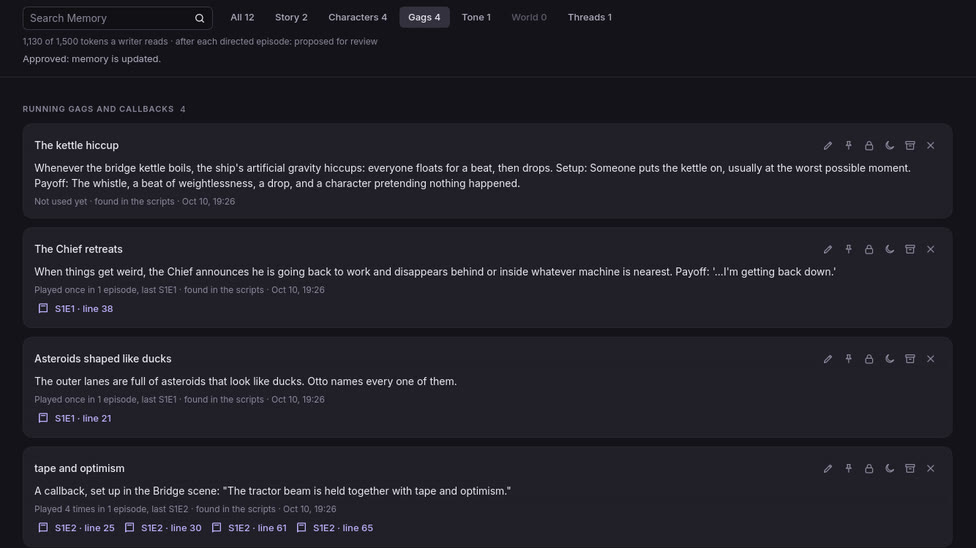
- The story so far. A synopsis of each episode, each character's voice and catchphrases, the running gags with every time they played, the tone, the world's facts and the open threads. Each entry links to the script lines it came from.
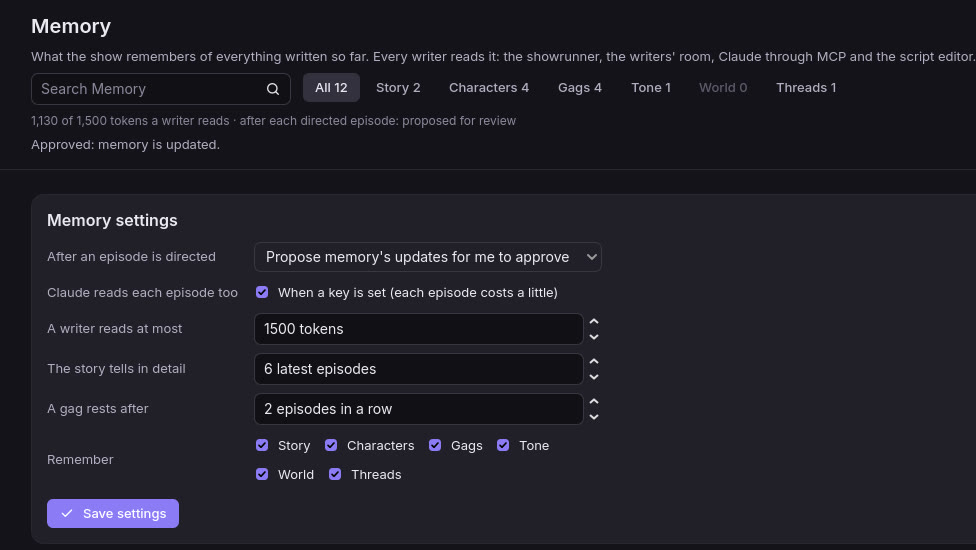
- Kept up as you go. When an episode is directed, memory proposes its updates, and they wait for your Approve. The pass that reads the scripts is free; with Claude connected, Claude also writes the synopsis and voice notes. Its settings say what happens and how much a writer reads.
- Yours to edit. Change an entry in place, pin it, lock it, rest a gag or retire it. Ctrl+Z undoes it.
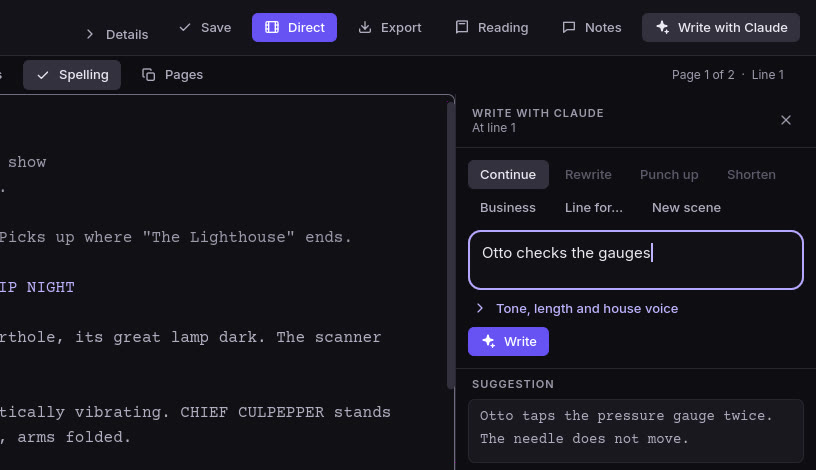
- Write with Claude. Ctrl+I in the script editor: continue at the caret, rewrite, punch up or shorten the selection, add business, write the next line for one of the cast, or a new scene from what you say happens. The director reads it before you see it, and Accept puts it in as one undo step.
- Or grow it from an outline. With Claude, the writers' room builds an episode from a premise, beats and scenes you approve one at a time, and holds the script to them.
- A season on a board. Episodes open on the season: numbered cards in air order, each with how far along it is (an idea, an outline, a script, directed, voiced, rendered, delivered) and the arcs and threads it moves. Drag a card to reorder, or add an idea. Outline an episode on cards, beats and scenes with act breaks, and Write the script turns the outline into a draft, with no model.
Director
A director that stages what you wrote
The built-in director reads every action line and turns it into blocking, performance and camera coverage. It needs no model, no key and no network.
- Blocking from the action. Characters walk to marks, to each other and to props, round the furniture and the people in the way. They sit, hide, pick things up and hand them over at the grip. “Mei climbs onto a crate” puts her on top of it until her next move, “Grandpa takes the lantern from Mei” hands it over, and “holds it up” raises it overhead. A shutter is pulled down where it stands. On a theatre stage, players come on and go off through the wings.
- Performance. Over thirty gestures for people, from a shrug to a cheer, and every other body plays them its own way: a cat's cheer wags its tail, a robot's beeps. Arms folded, hands on hips or a pose of your own is held until they gesture with that arm, take something or move. Listeners react while others talk, and fast moves are drawn on ones with speed lines.
- Crowds and passers-by. “Crowds rush past”, “A crowd gathers round the busker”, “Faces turn” and “A cheer from the crowd” each stage a crowd, drawn as your show draws its people, from children to the elderly. After “Mei holds the red lantern up high”, “The crowd slows. Faces turn.” turns every face up to it. A crowd keeps clear of the cast and never steps in front of them. A role the action brings on with “a” (“A STALL OWNER pulls down a shutter”) is acted and voiced, with no cast member to make.
- Props and effects that behave. A teacup comes out of a pocket, a pancake rides its pan, steam is aimed at whoever the line names, and rain falls until its sound stops. Lights change on cue, and the whole set can shake.
- Inserts with words on them. “INSERT - MEI'S PHONE” over “GRANDPA: Come home” fills the frame with the message on the phone's screen, under who it is from. Write a whole conversation, as quoted texts, lines led by who sent them or cues marked (TEXT), and the phone shows it as a messaging app does; write that a phone shows a text, and it does. A note, a screen or a sign shows its words, for as long as they take to read.
- Coverage by film grammar. It holds the axis, keeps eyelines, pans with a walker, frames close inserts the set has no camera for, keeps faces off the edge of the frame, and sees someone climbing up whole. When it mends a shot, the gestures played in it stay in the picture, and a face behind an arch is seen through the opening.
- Or Claude directs, on your plan. Choose Claude as the show's director, and Direct goes to the Claude you already have: Claude Code on your Claude plan, or the Claude connected to the show.
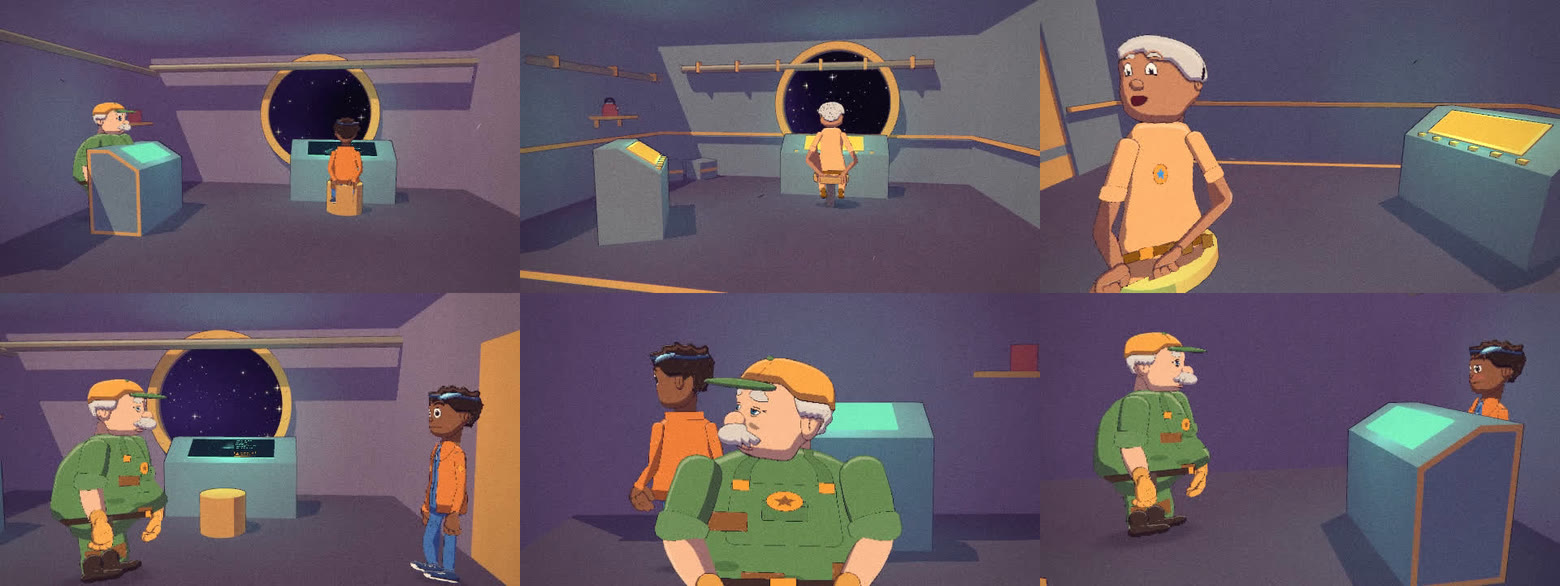
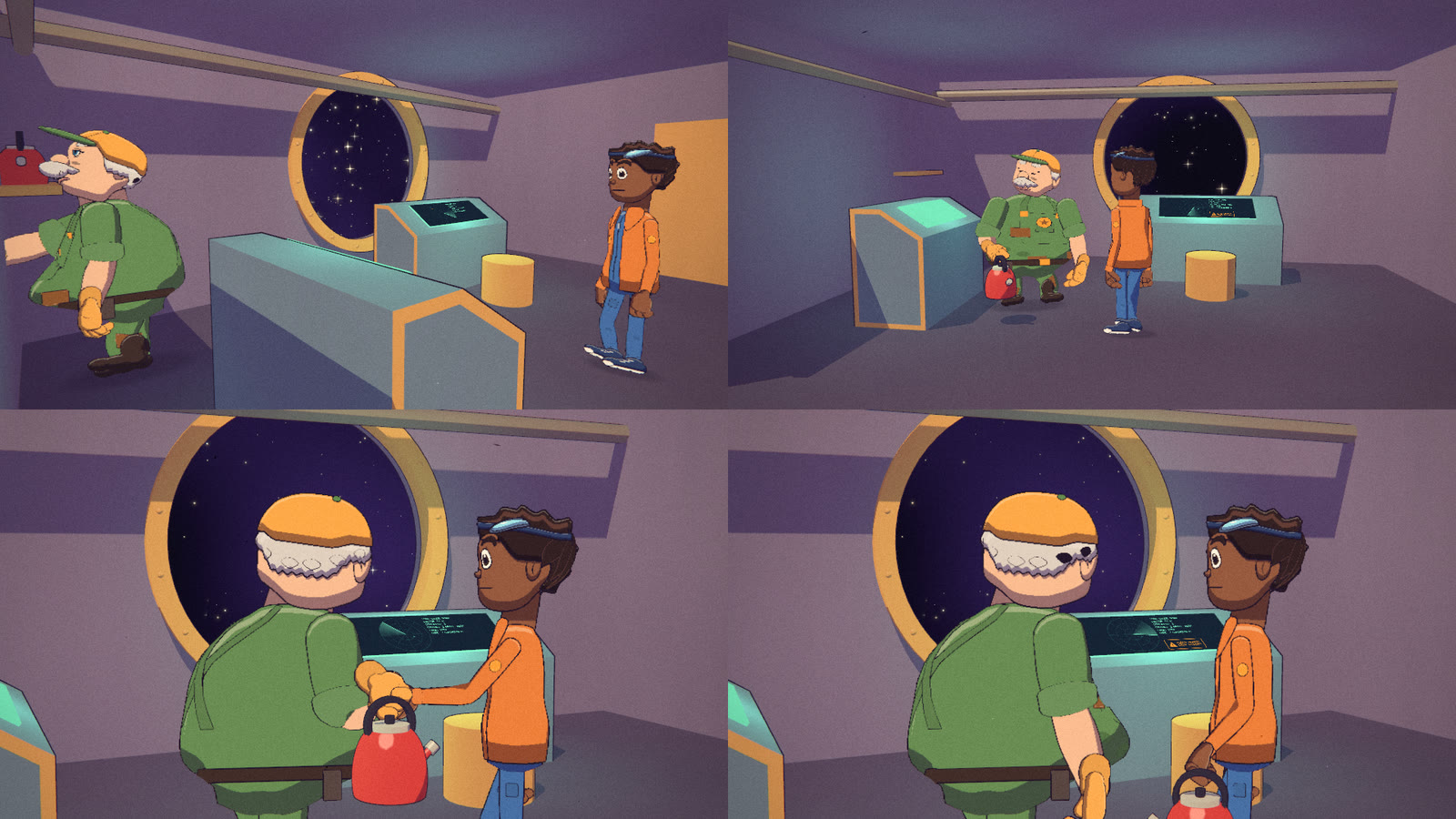
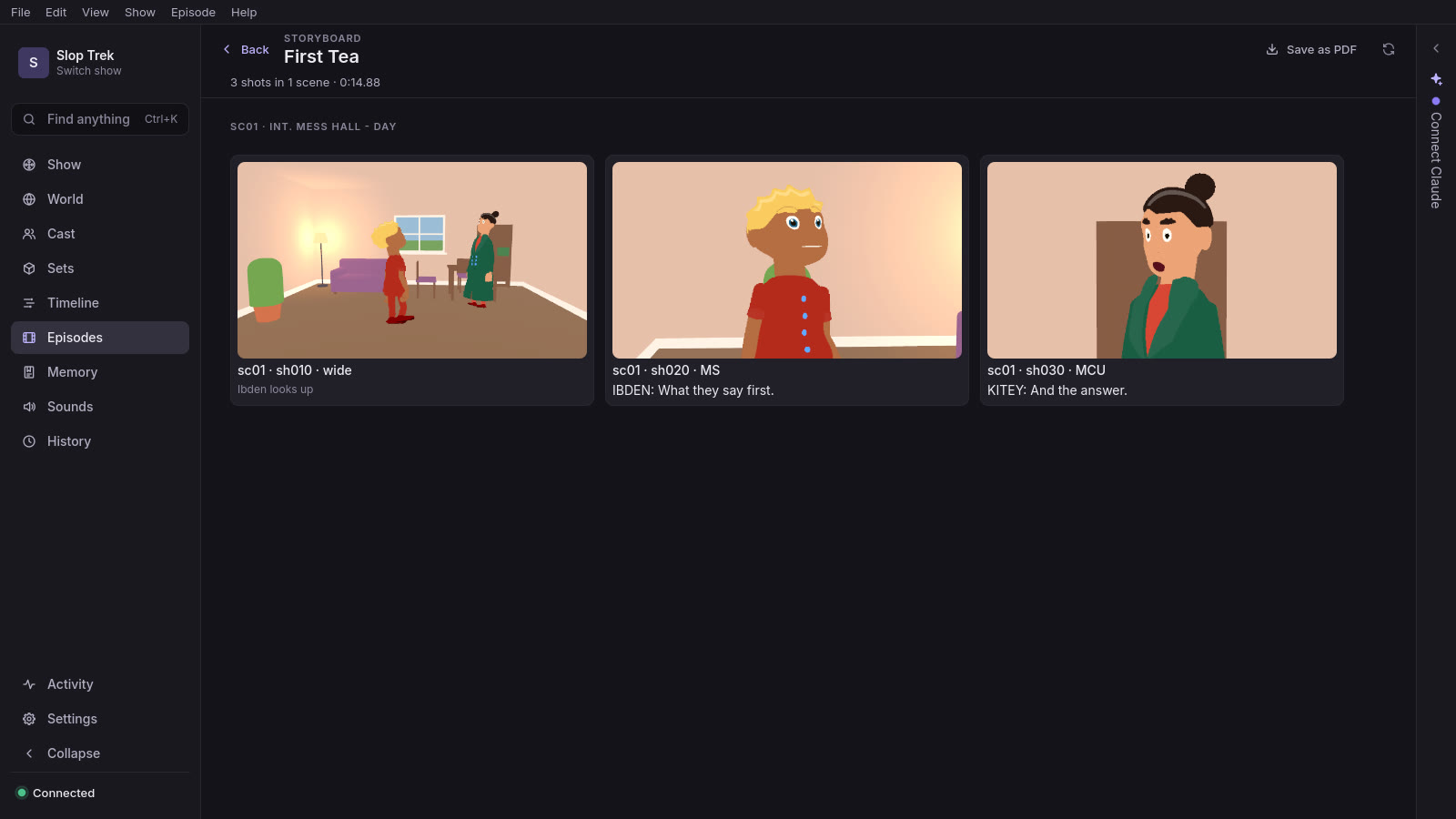
reelwright directdoes the same from the command line, “on Claude Code on your Claude plan”, with no key and no price. - A storyboard before any render. Every shot as a card with its own picture, its lines and its action, grouped by scene. Click a card to open the timeline at that shot, and save the whole board as a PDF to hand round.
Re-direct
Change one moment, keep the rest
Not happy with a line, a shot or a beat? Select it and press R. Give a note, or new words, and Reelwright directs just that stretch again. Everything before it stays exactly as it was, frame for frame.
- From where you are. On the timeline, R (or Re-direct… in the header, a shot's menu or the inspector) opens at the line, shot or frame you stopped at: this line, this shot's camera, to the end of the scene or of the episode, or In to Out. In a review, on a phone too, Re-direct from here starts at the frame you watch, and in the script editor at the line your cursor is on.
- A note, or new words. Rewrite the stretch's script right there, or write a note: “angrier”, or for Claude anything like “she sits instead of standing”. Or redo only the camera and keep the performance.
- The proposal, over the cut. The bar says where it changes the episode, plays that stretch with a second either side, flips between before and after at the same moment, and voices the new lines. Approve or reject it there, and Undo puts the episode back byte for byte.
- The rest stays put. With an end, everything after the stretch is kept too, and only moves in time if the new stretch runs longer or shorter. The other scenes stay as they were. When someone ends the stretch gone, arrived or holding something else, the rest of the scene is directed again too, and the proposal says why.
- What you changed by hand survives. A delivery, a gesture, a look, a shot's camera or where someone stands as a scene opens, changed on the timeline, the stage or in previs, is kept when the stretch or the whole episode is directed again, unless you clear it.
- Your own Claude, no key. With Claude as the show's director, it goes to the Claude you already have: Claude Code on your Claude plan, or the Claude connected to the show through claude.ai, Claude Code or Claude Desktop. Studio says it waits for that Claude by name, then that it is re-directing, and its proposal comes back over the cut. Or ask Claude yourself: “re-direct sc02 from Nell's line, angrier”.
- Or with no Claude at all. The built-in director takes a note's words for how a line is said, “angrier”, “quieter”, “slower”, into the script for whoever speaks first, and the proposal says what it wrote where. If a note would change nothing, it says so and what to do instead.
Timeline
Play the cut, then edit it to the frame
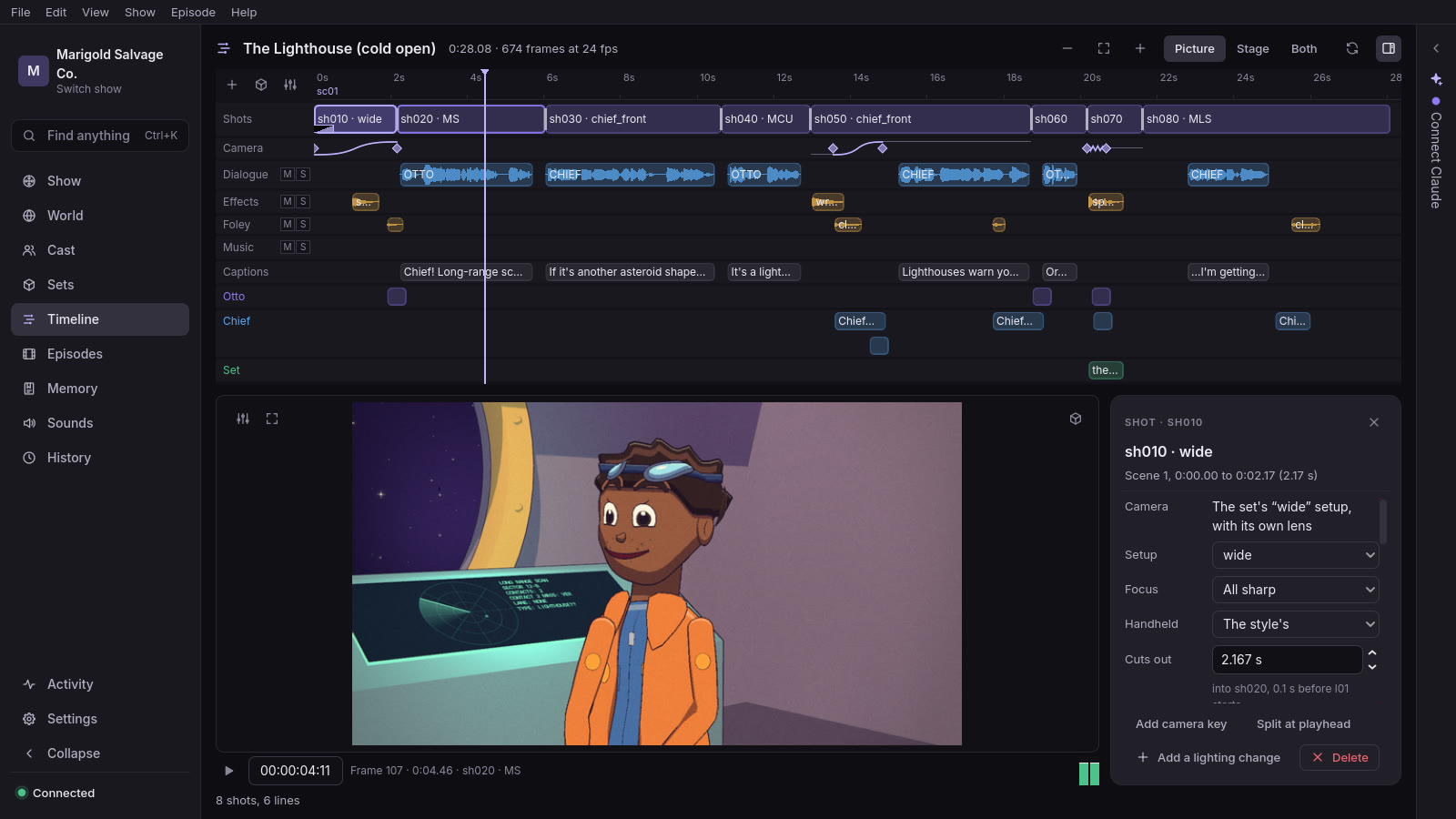
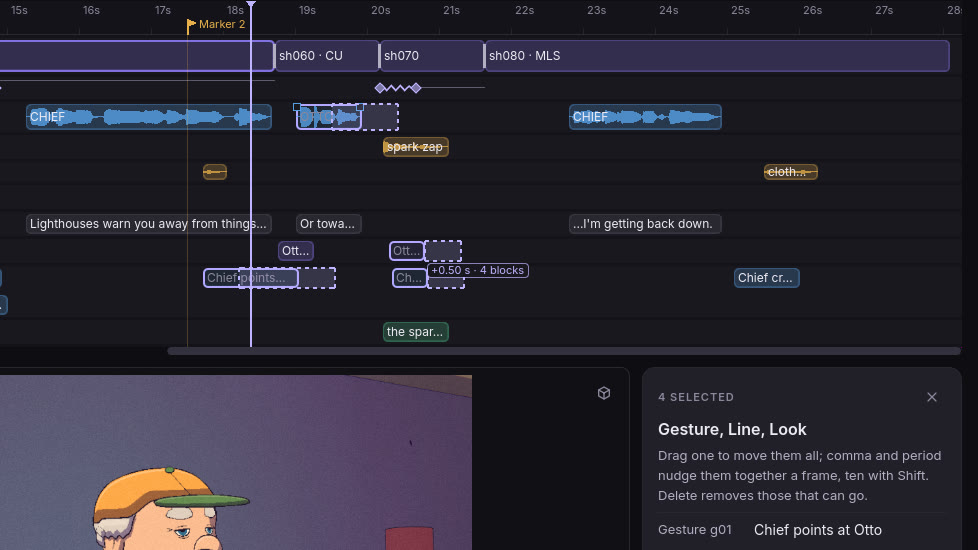
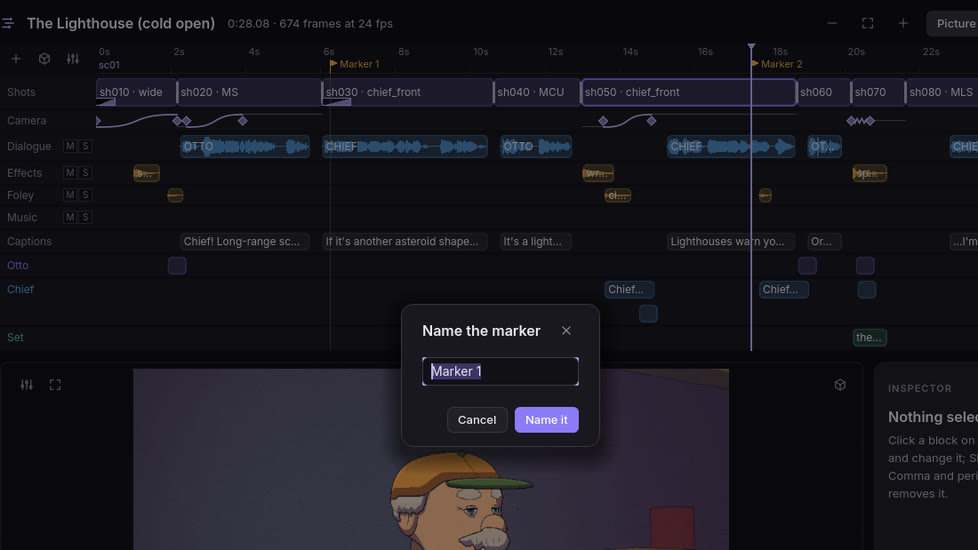
Open an episode on the timeline: shots, camera, dialogue, effects, music, captions, everyone's business and a crowd's on their tracks, with the frame under the playhead beside them and an inspector for whatever you click.
- Live playback. Space plays the episode from the playhead, with its sound. J K L shuttle, and the arrow keys step a frame. While the next frame is drawn, the viewer keeps the last one.
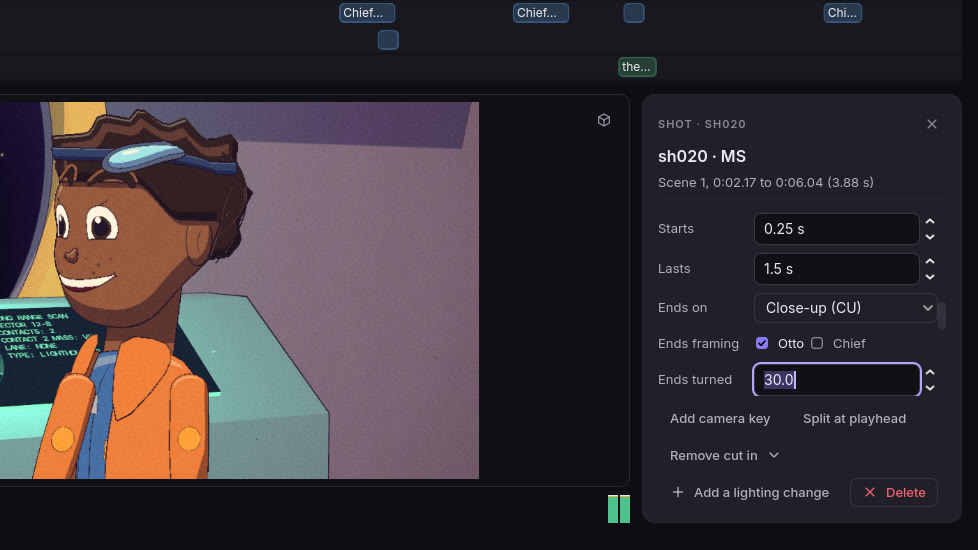
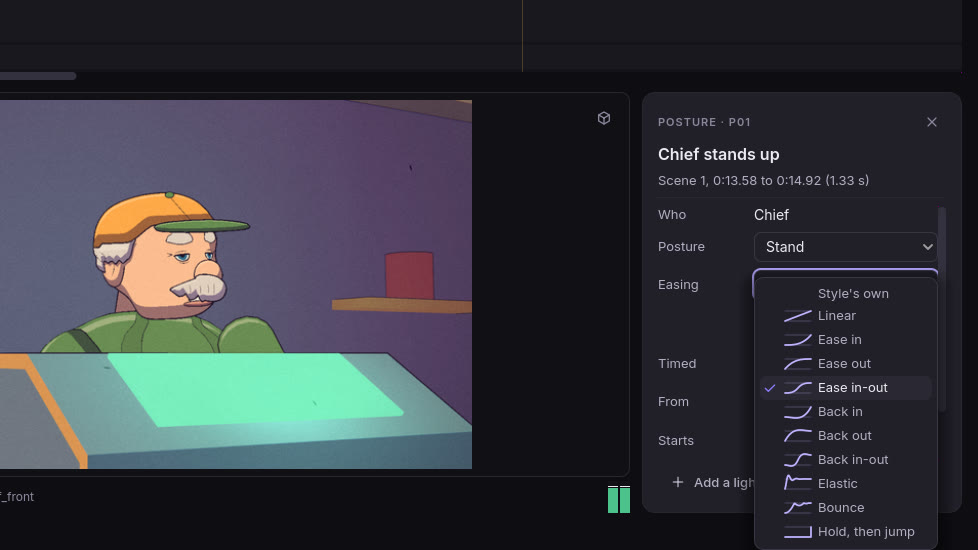
- An inspector for every block. Click a shot, a line, a sound, a caption, a look, a posture, an expression, a gesture or an effect, and the inspector shows everything an edit can change, down to what a cue is timed from. A held pose plays once, for a time or until released. Shift-click to select several.
- Cuts as an editor expects. Drag a cut to roll it, or a shot to slip it. S splits at the playhead, and [ and ] trim to it. Drags land on frames and snap to lines, captions, sounds and the playhead.
- Transitions and camera moves. Choose how a shot comes in: a dissolve, a dip to black, a wipe, an iris or a whip. Give it a camera move, the framing it ends on and its easing, picked from curves drawn beside plain names. The Camera lane draws the curve each move plays.
- Add anything at the playhead. A then a letter adds a sound, music, an effect, a gesture, a face, a look, a posture, a change of clothes, a lighting change, a camera move, a shot, a line or a title card where the playhead stands. Right-click a track or someone's lane for what it can hold, or drag from the library. Each opens in the inspector to adjust.
- Lens and composition. Give a shot its own lens, the camera's height, the air over everyone's heads, and room ahead of where someone looks, or short-side them on purpose. Frame a single over someone else's shoulder.
- Several at once. Select a few blocks and drag one: they all move by as many frames. Each edit is your own, and Ctrl+Z takes it back, a whole drag at a time.
- An editor's tools. Copy, cut and paste shots, lines, sounds and business, even between episodes. Mark In and Out with I and O, then lift the range or extract it so what follows plays sooner. Type a timecode to go there, shuttle with J K L, and step from cut to cut.
- Sound you can see and mix. Every sound draws its waveform, meters run as it plays, and each track has mute and solo. Fade any clip in or out from handles at its corners, and level the tracks in a mixer panel that folds away like the others.
- Markers. M marks the playhead. Name a marker, drag it, and jump between them; it stays on the word it marks when the line moves.
- Captions, proposals and round trips. Lines are cut into caption cards timed for reading. A showrunner's proposal is drawn as a ghost until you approve it. From the command line, the cut goes out as OpenTimelineIO and your editor's trims come back as edits.
Stage
See the set from above, and restage it by hand
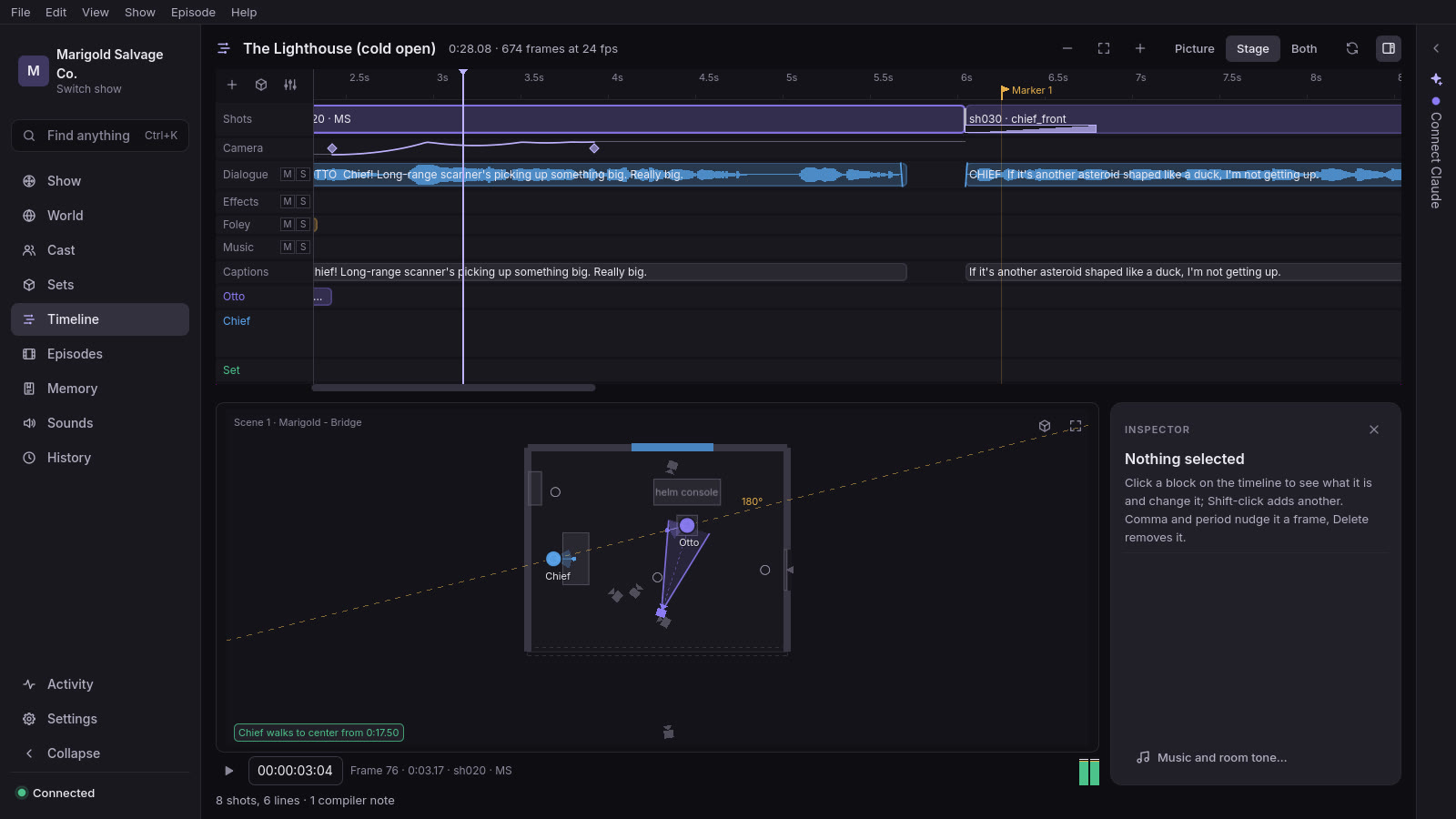
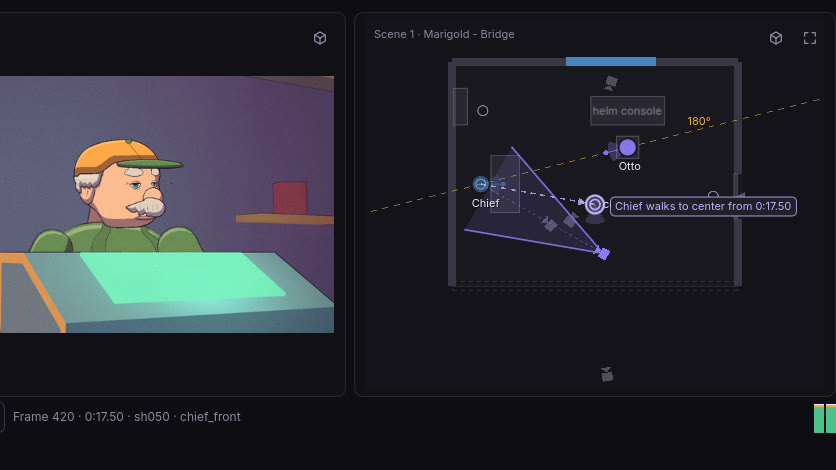
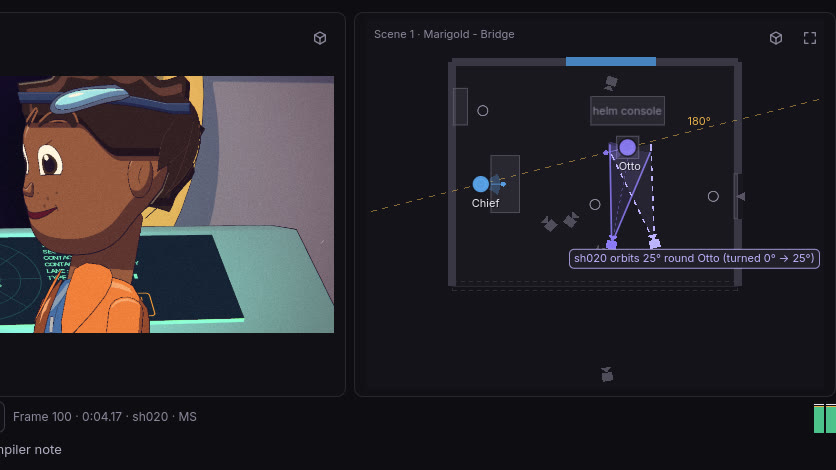
Beside the picture, or instead of it, the stage view shows the scene's set from above at the playhead. Picture, Stage or Both is in the timeline's header, and V cycles them.
- Everyone in their place. The set's pieces, walls, marks and cameras; everyone in their timeline color, facing where they face; the props; the shot's camera and what it sees; the 180° line and the walks. It follows the playhead and plays live.
- Drag someone onto a mark. They walk there from the playhead, or, before anything happens in the scene, start there.
- Turn them, or move the camera. Drag the knob ahead of someone to turn them toward someone or something, and drag the camera round what it frames to orbit it.
- One drop, one edit. A ghost says what the drop will do while you drag. Ctrl+Z undoes it, and a drop that cannot apply is refused with the reason.
- Linked to the timeline. Click someone on the stage to select their cue; select a block, and its subject lights up on the stage.
Previs
Block and shoot the episode in 3D
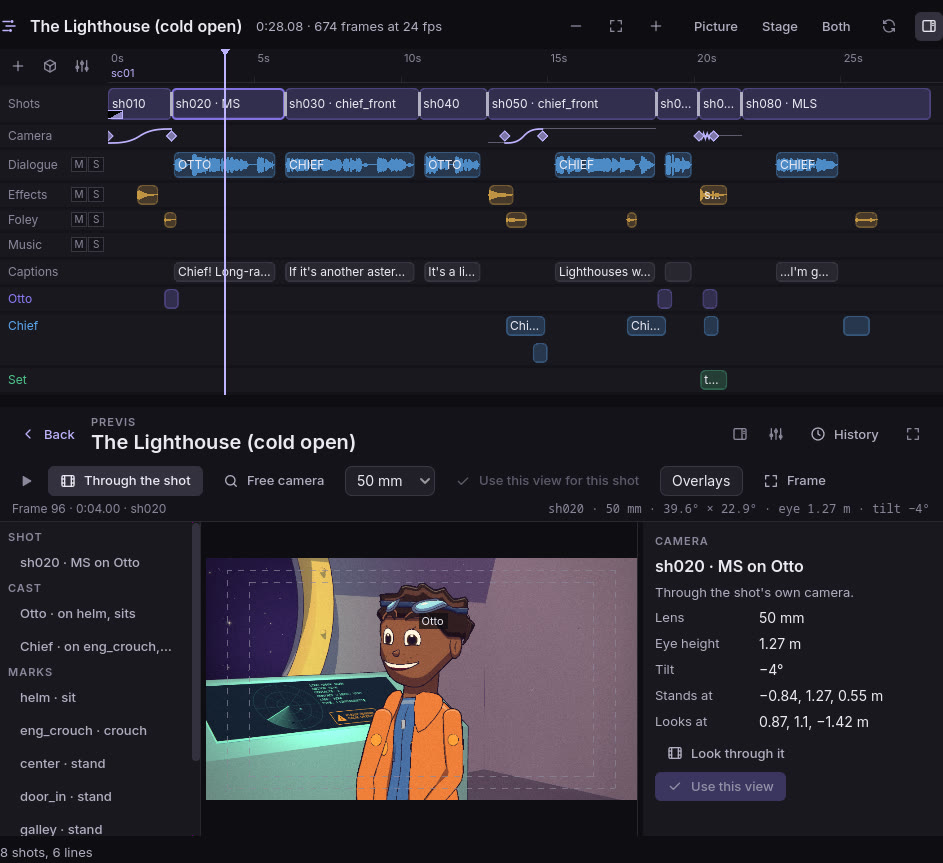
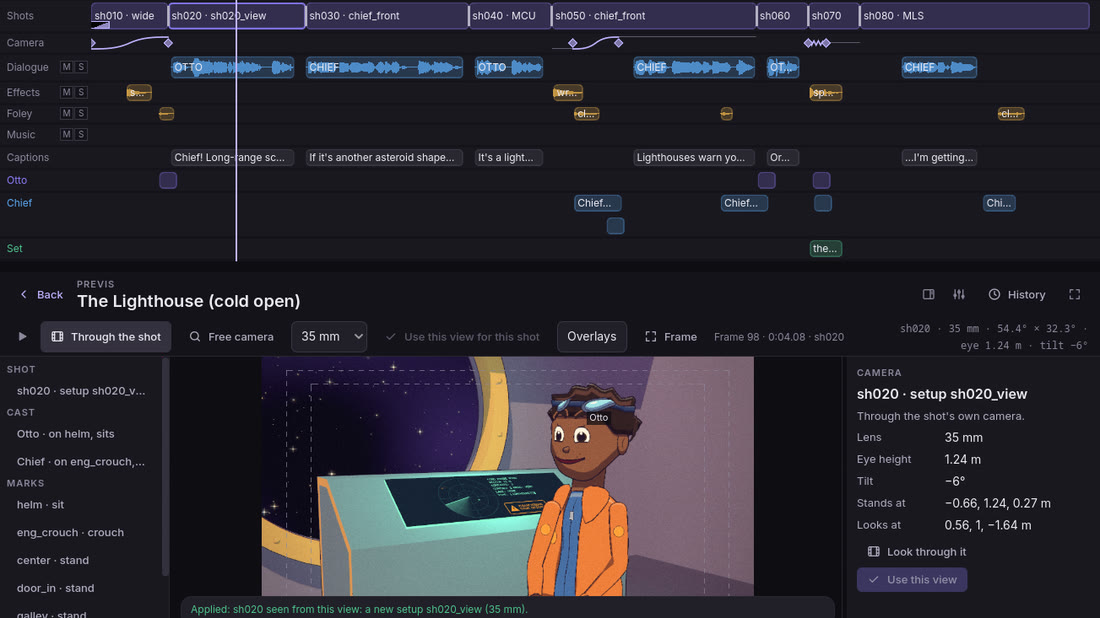
Open the 3D view over the timeline (Shift+V), and the episode stands in front of you at the playhead: the cast posed where the cut has them, the props, the lighting and the effects. It scrubs and plays with the timeline, in the installed Studio and in a browser.
- Look through the shot. The view is the shot's own frame, exactly as the timeline shows it. Drag to pan and tilt, dolly with the wheel, change the lens, or fly the camera with the right button and W A S D.
- Keep the view you found. U uses this view for this shot: the shot gets a new camera setup where you stand, as one change. Play it again, and the shot is the view you saw, to the pixel.
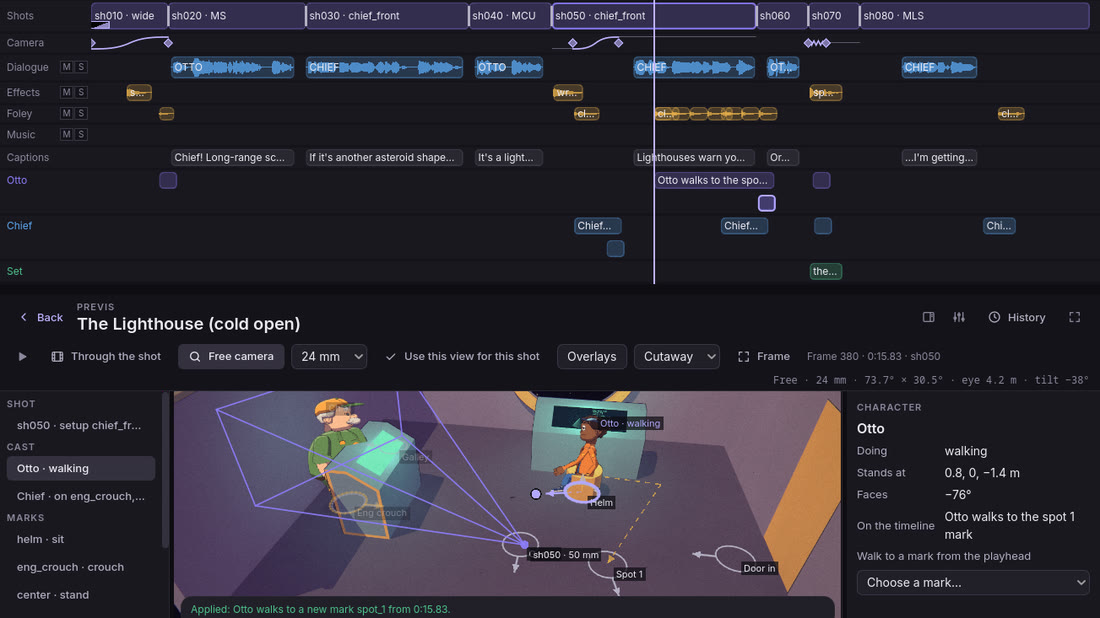
- Step out to a free camera. Esc lets you orbit and fly round the set, with the shot's camera drawn where it stands.
- Block it by hand. Drag anyone onto a mark, beside a piece of the set, or onto open floor, which gets a new mark. They walk there from the playhead. A move that cannot be made says why.
- Move the camera through a shot. Put camera keys on the timeline's camera strip, each framing whom it likes at its own size, height and lens, and the camera pans, pushes in or zooms between them as the change asks, eased as you say. Two keys make a dolly zoom.
- Focus like a lens. Any shot can hold focus on someone's eyes wherever they go, or at a distance, at an aperture; a key that focuses elsewhere racks the focus, and what is off it blurs as that lens would. A shot can be handheld, or locked off in a style that shakes.
- Proposals in place. A showrunner's change to the episode is drawn as a ghost, where it would put everyone and the camera, to accept or reject. Viewers look, play and pilot, and change nothing.
Voices and music
Direct the voices, score the cut, or record your own cast
Every line has a voice from the start: Kokoro speaks it on your computer, offline, in each character's own voice. Tell it how to read a line, lay music under the cut, and bring in real actors when you want them.
- The voice follows the direction. A line's emotion, its parenthetical and your note to the actor (“angrily”, “slowly”, “trembling”, “sarcastic”) change how it is read: its pitch, its pace, the words it stresses and where it pauses.
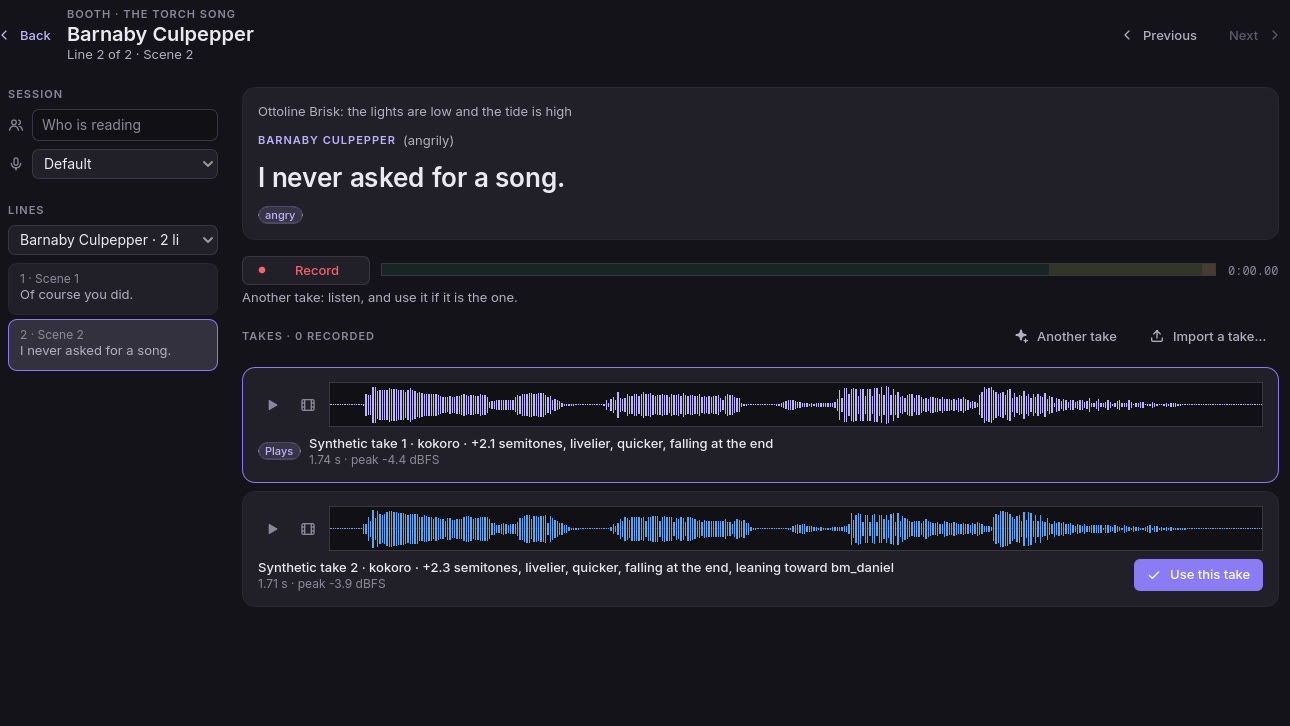
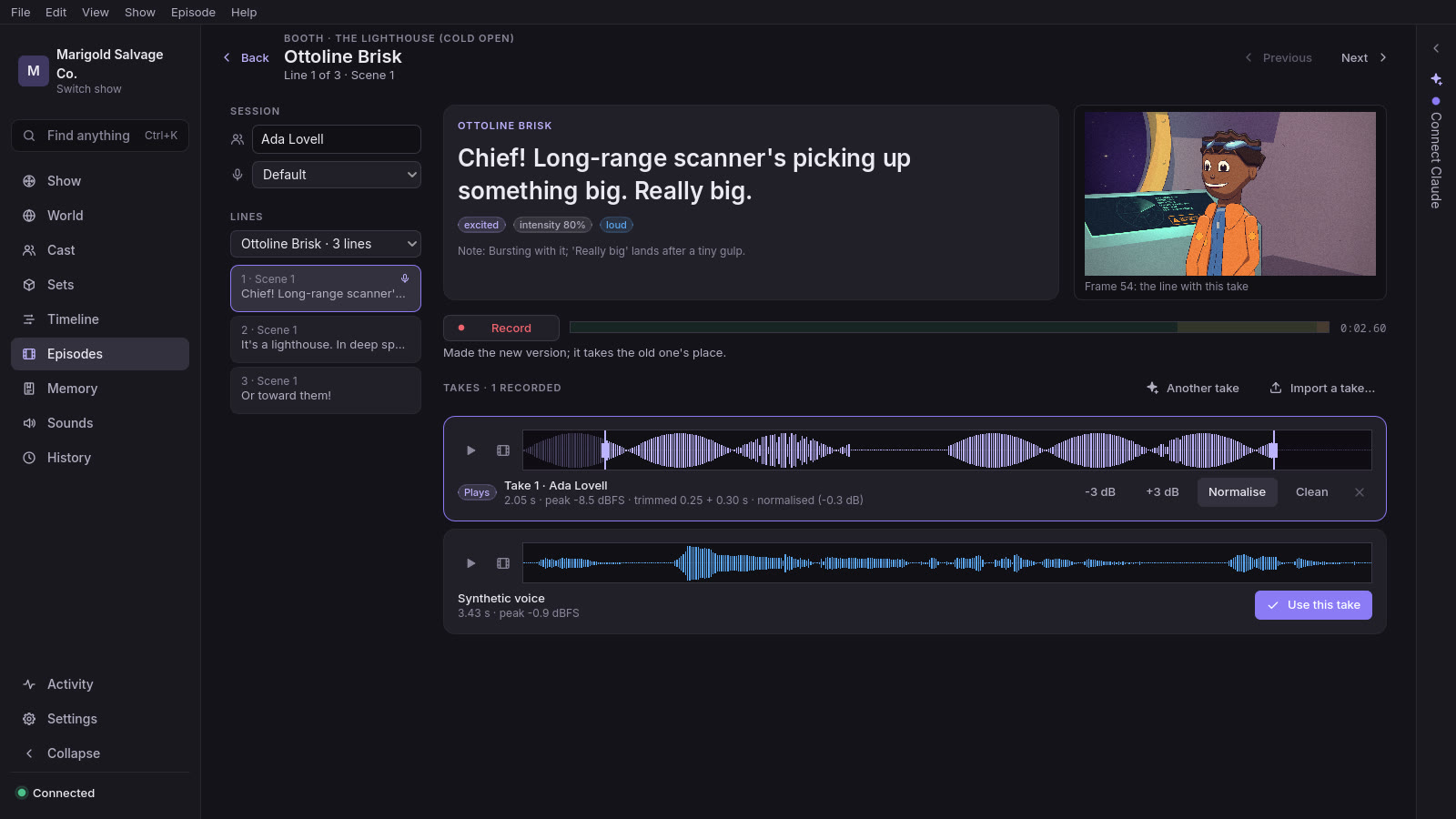
- Another take. Ask for another reading of a line, a little different each time, and choose the one you want in the booth.
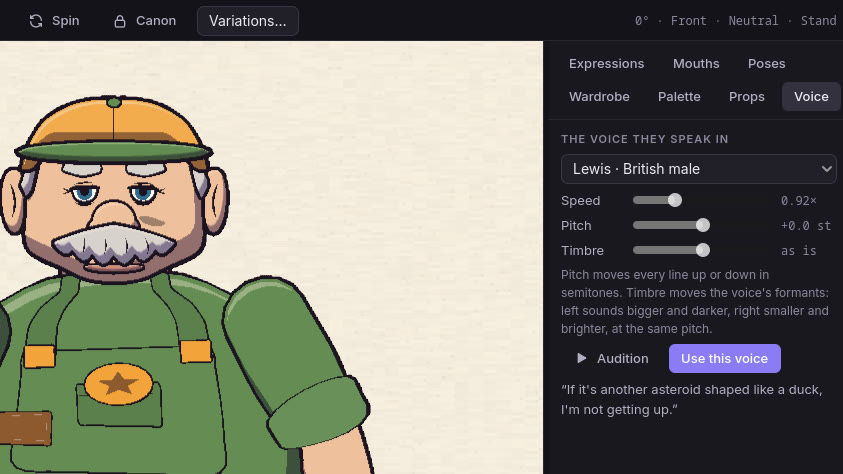
- A voice for each character. The character studio's Voice panel lists every voice by name, accent and gender. Set its speed, pitch and timbre, and hear the character's own first line before you keep it.
- Sung lines. A lyric is sung in the character's own voice, with a singer's vibrato and ring: to a tune of its own, to a melody you write a note a syllable, or laid phrase by phrase on a vocal you bring in. For a song that has to sound like a trained singer, bring in a recorded vocal.
- In another language. Make a show in Spanish, French, Hindi, Italian, Brazilian Portuguese, Japanese or Chinese, voiced and lip-synced in it, or dub an episode into another language and render it with its own captions. Titles, signs and captions draw Cyrillic, Greek, Devanagari, Arabic and CJK alike.
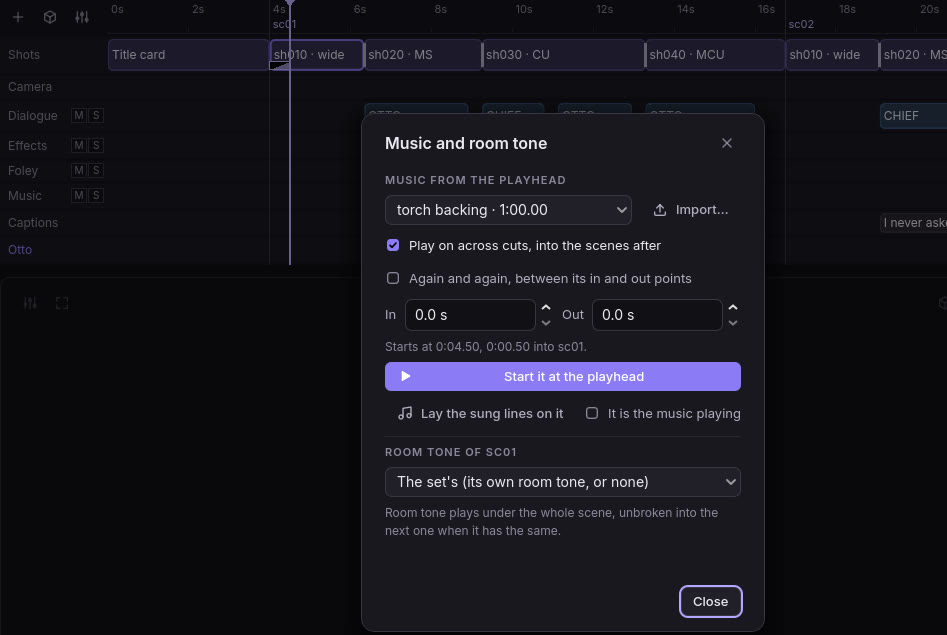
- Music that plays across cuts. Bring in a WAV, FLAC, Ogg or MP3 and start it at the playhead. It plays on across the scene cuts with no seam, from its in point to its out point, and dips under every spoken line.
- Foley, made for you. Footsteps land on every step, sounding like the floor they cross (wood, a metal deck, carpet, stone, grass, sand or water), with cloth as people sit and turn, props that sound like what they are made of, and doors as people come and go. It ducks under speech and has a lane of its own on the timeline: mute, level or swap any one sound, or add one at the playhead.
- Room tone. A scene can have room tone under it: its set's, a sound of the show's, or Reelwright's own quiet room. It runs unbroken across a cut into a scene with the same one.
- A booth for your own cast. A prompter for every line, take after take with its waveform, and trim, level and clean-up, from your microphone on the desktop or in the browser. Choose a take, and lip sync and timing follow the recording.
Cast
Characters of any kind, made from your words
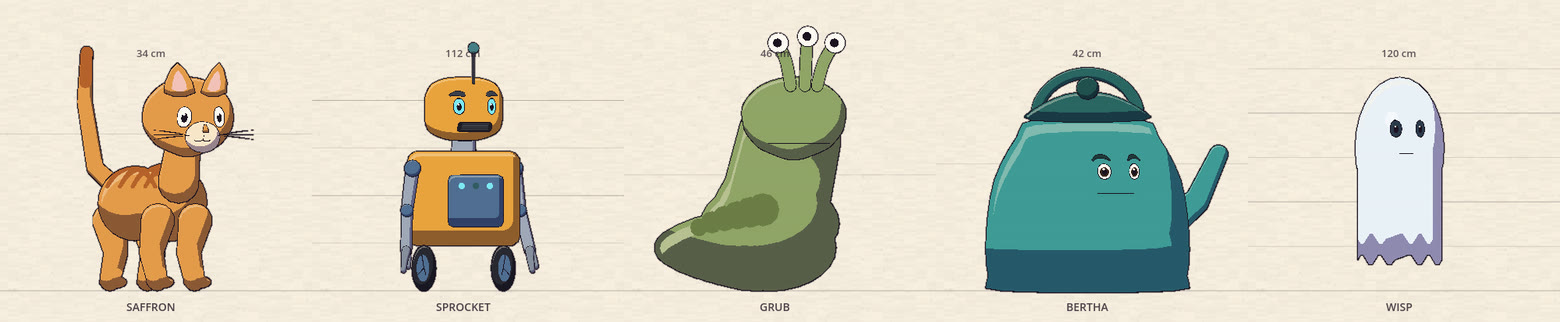
A character can be a person, an animal, a creature, a robot or a talking teapot. Describe it in a sentence, and Reelwright makes it, with no model and no key.
- Any kind of body. A person, a four-legged animal, a snake, slug or worm, a blob or a ghost, a robot on wheels, treads, a hover pad or legs, or a talking object: a kettle, a teapot, a lamp, a toaster, a crate or a book.
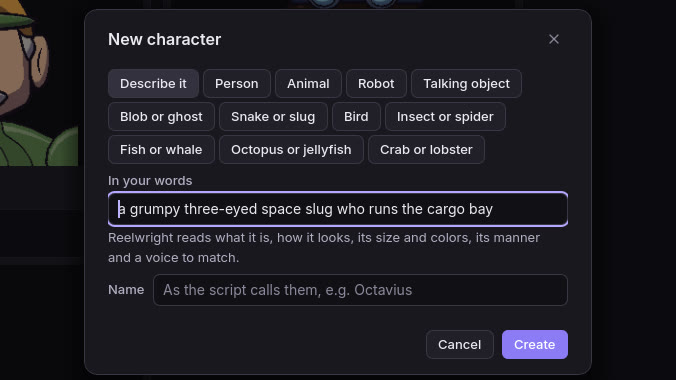
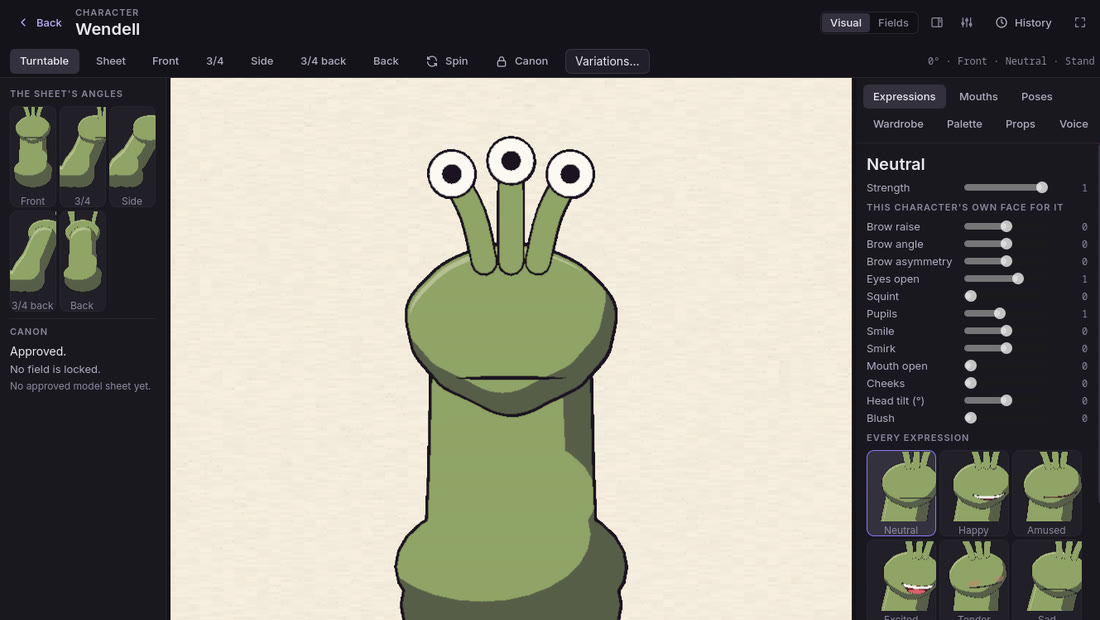
- From a sentence. New character opens on “describe it in your words”. From “a grumpy three-eyed space slug who runs the cargo bay”, Reelwright reads what it is, its shape and features, its size and colors, its manner and a voice to match. Or ask for a few to pick from.
- At their age, as the script has them. Make everyone a script names in one click, looking like the script says and drawn at their age: “MEI, 11,” has a child's bigger head and shorter legs, and “GRANDPA HUO, 70s,” grey or white hair, bushy brows and a stoop. Grandpa is “he” though the script never says so. The Age row in Cast › Fields draws anyone again at another age, keeping their face.
- Life under the sea. A hermit crab private eye, an octopus bandleader, a whale torch singer: fish, sharks, whales, dolphins, seahorses and sea turtles, octopuses, squid and jellyfish, crabs and lobsters, each drawn and rigged as its kind, swimming or scuttling sideways, with flippers, tentacles and claws that wave, conduct and hold props.
- They act like themselves. Each kind moves its own way and at its own pace: on paws, in a slither, a roll, a hover, an ooze or a hop. A wave written for a person is a paw for a cat and a beep for an armless robot, and every mouth lip-syncs. The director reads “rolls”, “trundles”, “oozes”, “prowls” and “powers down”, and calls a creature what it is (“the robot”) when there is only one.
- Pose your own gestures. In the character studio's Poses, New gesture… puts a handle on each hand and foot, the head, the chest and the hips. Drag a hand and the arm reaches for it, lower the hips and the knees bend with the feet on the floor, never past what a joint can do. Key it on a strip, give the fingers a grip (a point, a fist, a thumb up), and it plays like the built-in ones: on the timeline, by name in a script and in renders.
- Walks of their own. Give anyone a walk of their own (a swagger, a stomp, a tiptoe) at their own pace.
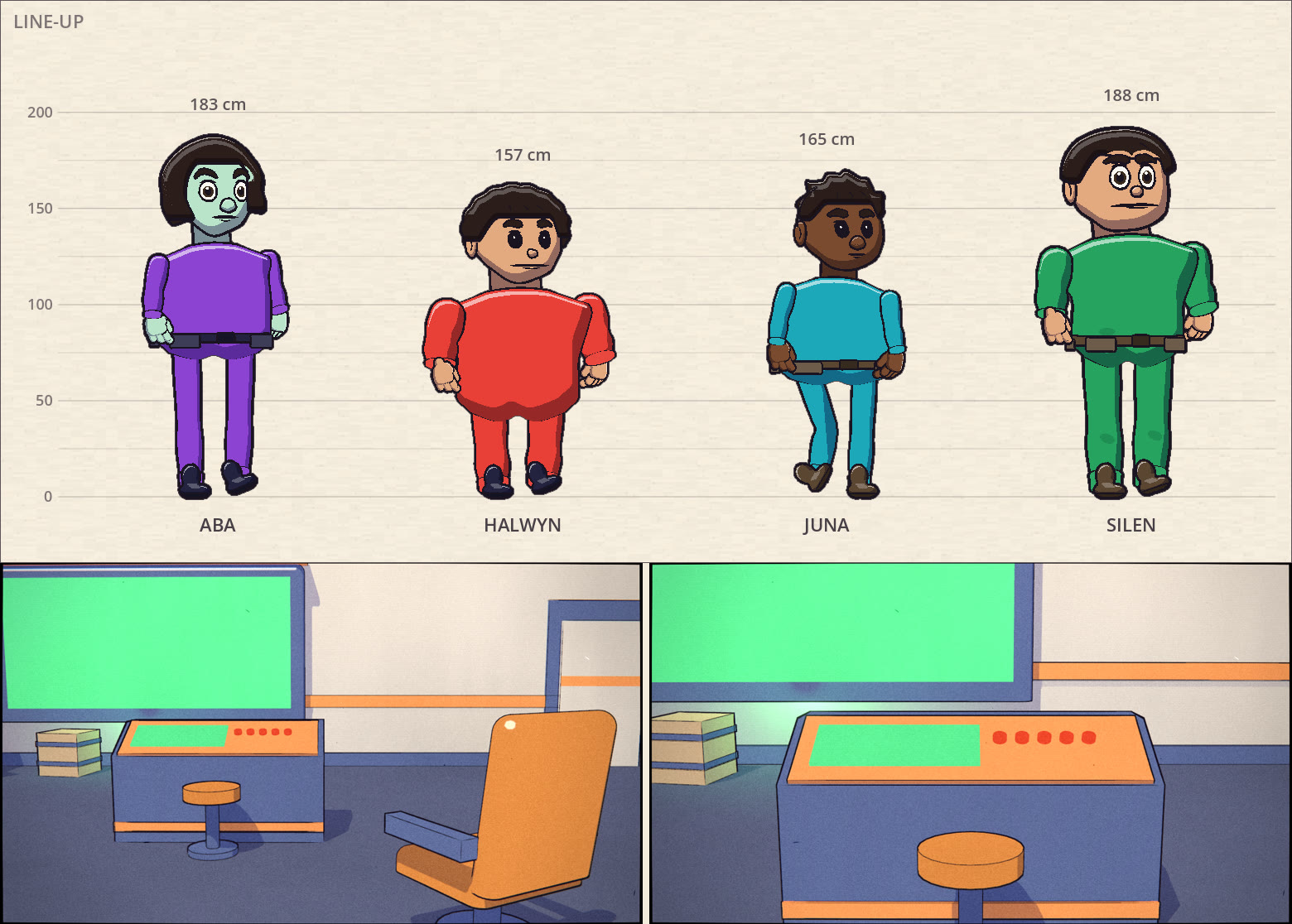
- The character studio. Open anyone on a turntable, on the model sheet's paper. Turn them to the sheet's five angles, lay the approved sheet over them to see what has moved, and try their expressions, mouth shapes, postures, gestures, walks, costumes, palettes and props, live. Variations… offers four to choose from.
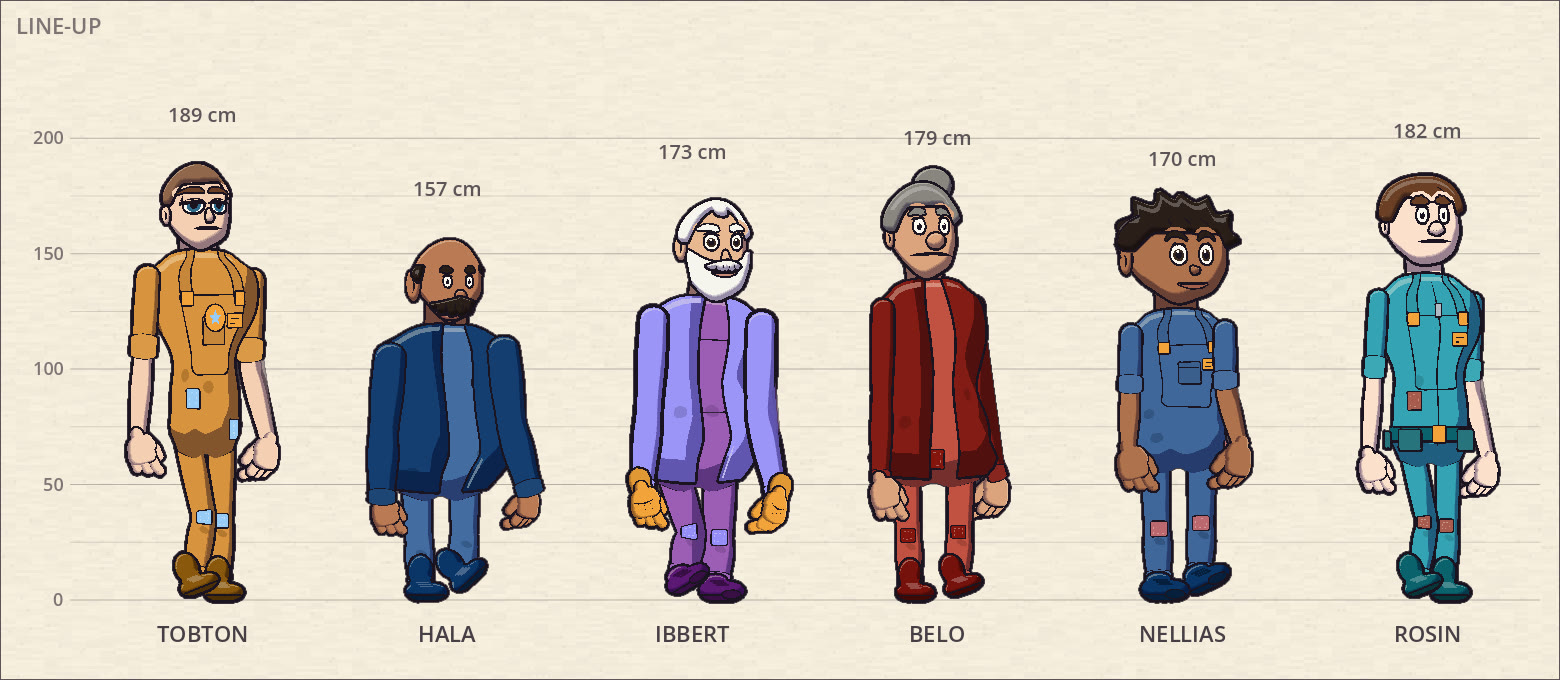
- Casts from a pattern. A character pattern describes a kind of character, and each draw from it is distinct: its own silhouette, colors, height and hair, with a model sheet of turnarounds, expressions, mouth shapes and palette.
- A wardrobe, not one costume. Give anyone other outfits beside their own clothes: the raincoat, the pajamas, the disguise. Make one from what they wear in Cast › Wardrobe and change it layer by layer. On the timeline they change into it at the playhead, and it holds from scene to scene until they change again.
- Faces in the cast list. Every character has a thumbnail of their face beside their name, drawn once and redrawn only when they or the look change.
- Lock what is canon. Lock a character, or one detail of it, and nothing changes it without your say.
Look
Make your show's look in the style lab
A show's look is made, not picked. Start it from your words, from pictures you like or from a blank, and tune every part of it while you watch it on your own cast.
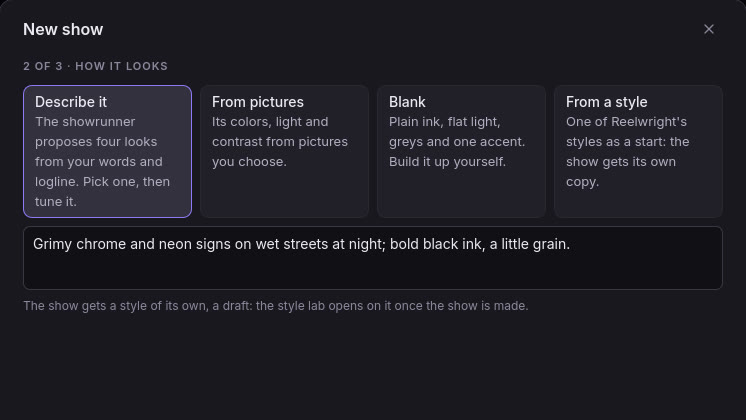
- Start it your way. New show asks how the look starts: in your words, from pictures you choose, from a blank, or from one of Reelwright's styles as a starting point. The show gets a style of its own, and the style lab opens on it.
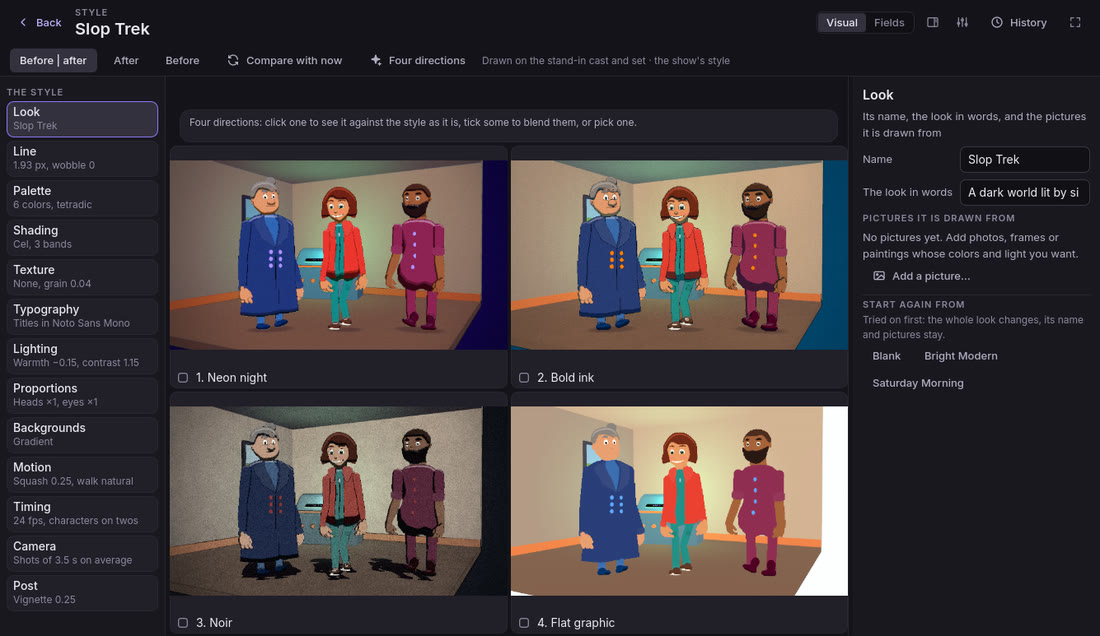
- Four directions to choose from. From your words or pictures and the logline, the showrunner proposes four distinct looks, side by side. Pick one, or tick a few and blend them. Without Claude, Reelwright's own rules make them, at no cost.
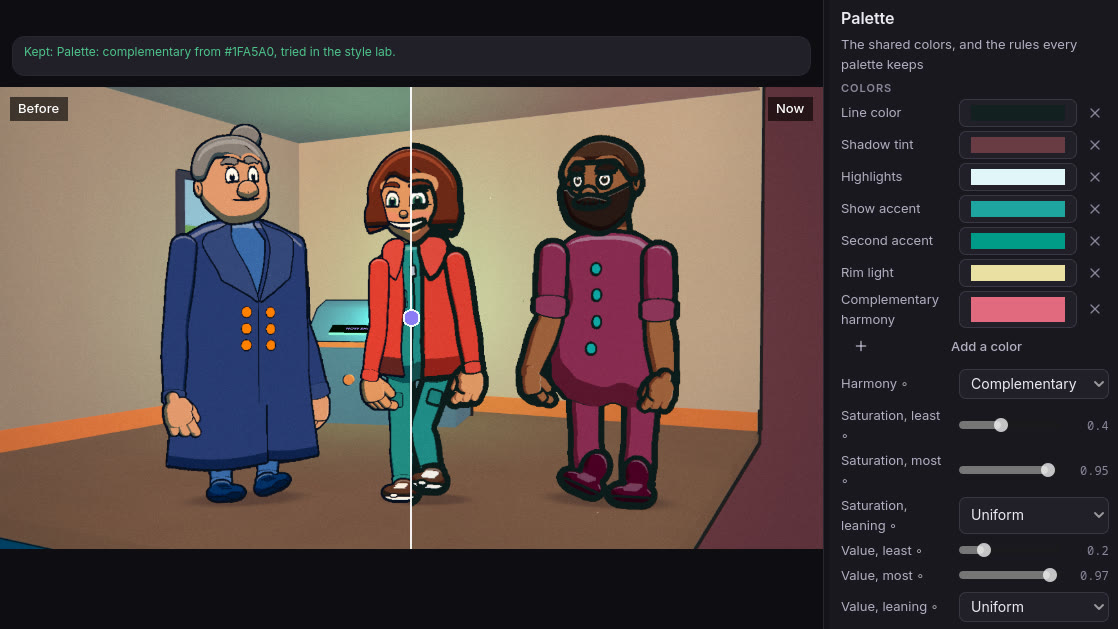
- Drawn live, before and after. The lab draws the style as you change it, with no render, on your cast in one of your sets, or on stand-ins until you have some. A divider wipes between the style as it was and as it is.
- A control for every part. Line, palette, shading, texture and grain, typography, lighting, proportions, backgrounds, motion, timing, camera and post. A slider shows its change while you drag, and Ctrl+Z takes it back.
- Try it on first. A palette from one key color by a harmony rule, a pair of typefaces, a lighting look: each is tried on, then kept or taken off.
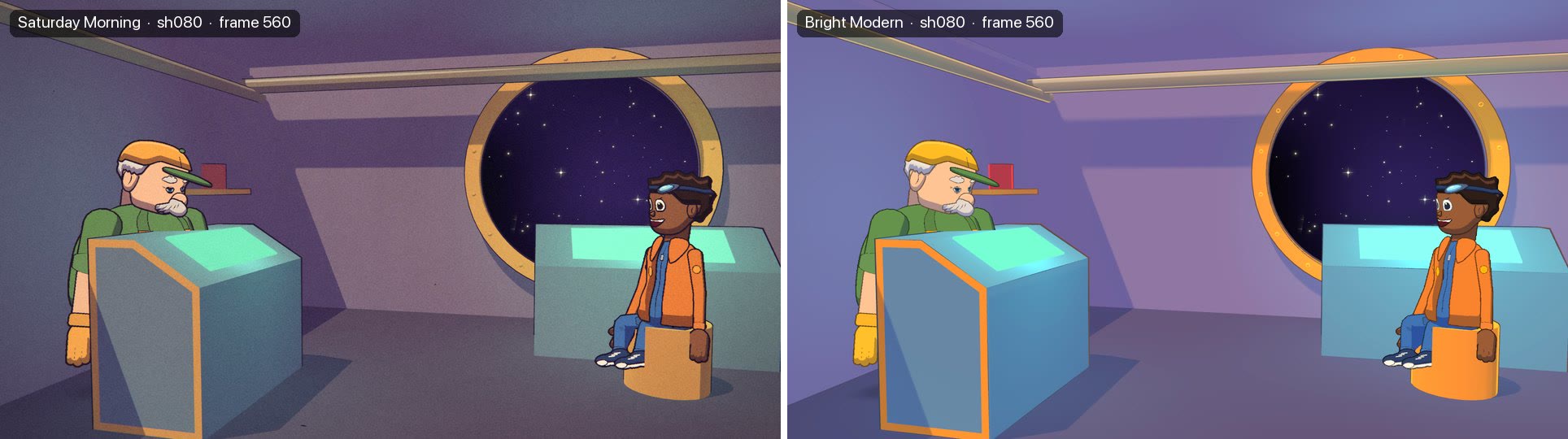
- Restyle the whole show. Switch its style and see every character before and after. A drift report says what moved, and why.
Sets
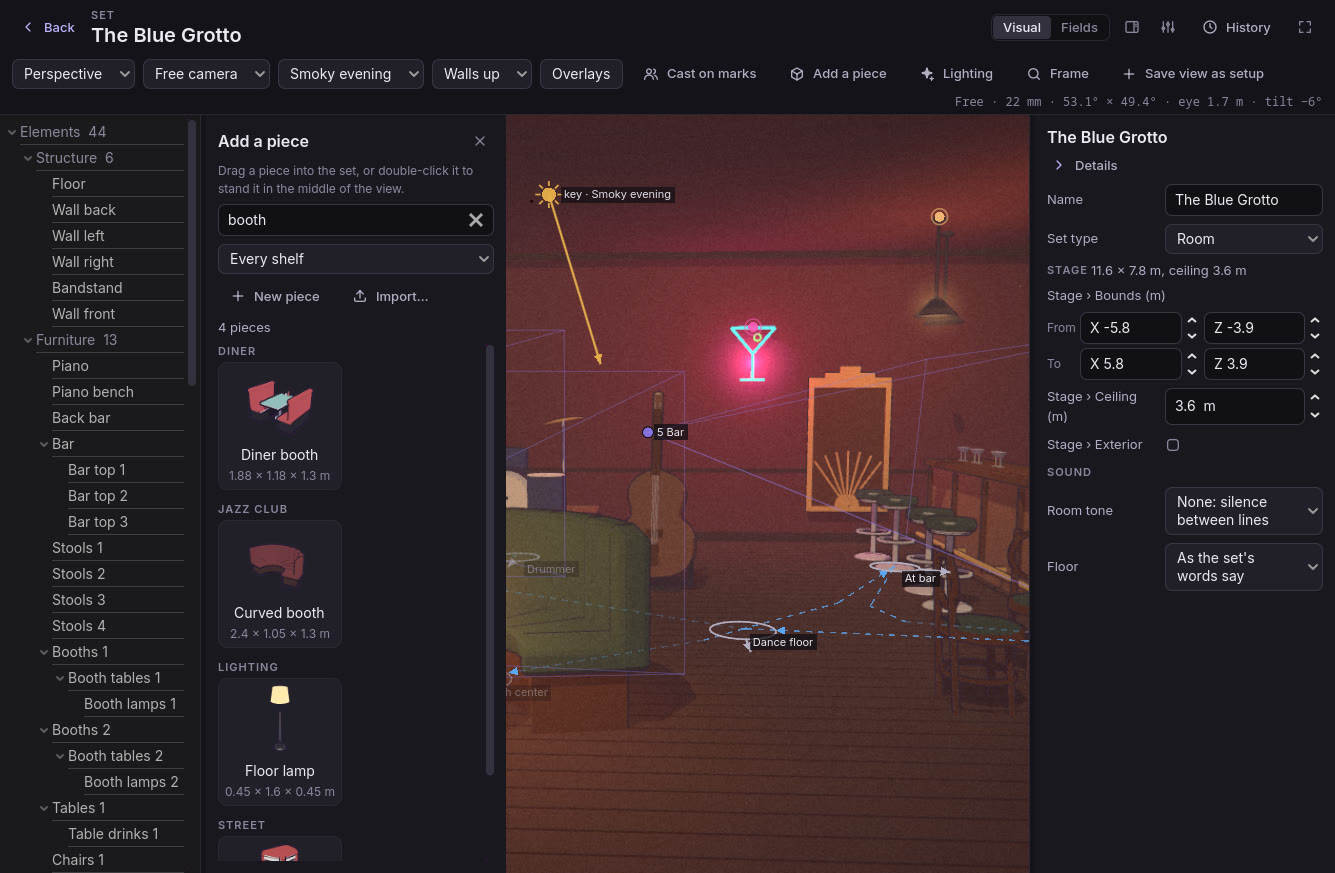
Build your sets in 3D, from a library or by hand
Open a set, and it stands in front of you in 3D, in your show's style. Walk round it, look through its cameras and change anything in it by hand. Every change is listed in History, and Ctrl+Z takes it back.
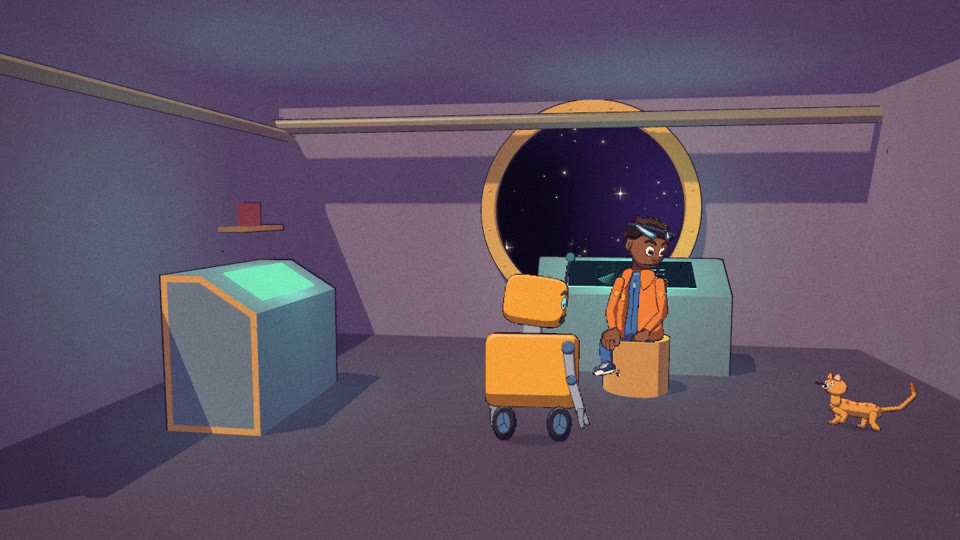
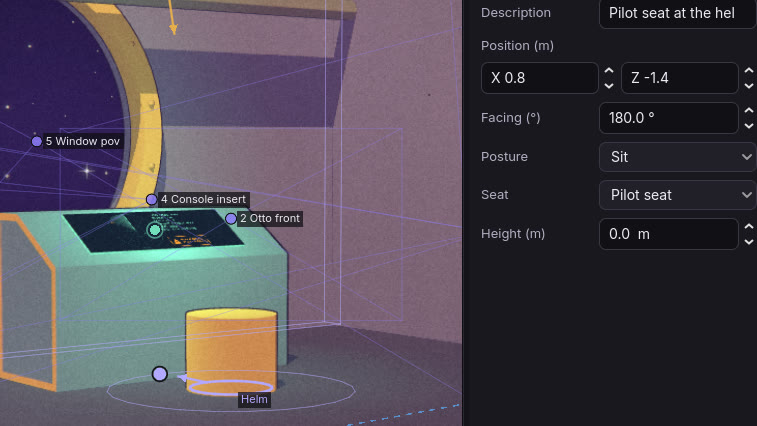
- Walk round it. Orbit, pan and fly as in a pro 3D tool. Keys 1 to 9 look through the set's camera setups, framed exactly as they shoot. Overlays show the marks, walkways, entrances, cameras and lights, and Cast on marks stands everyone in their places.
- Move anything. Drag a mark, a piece, a camera or a walkway across the floor, turn it by its knob, raise it by its arrow, or aim a camera by what it looks at. Moves land on a 5 cm grid and turns on 15° steps, or type the number. Save view as setup puts a new camera where you stand.
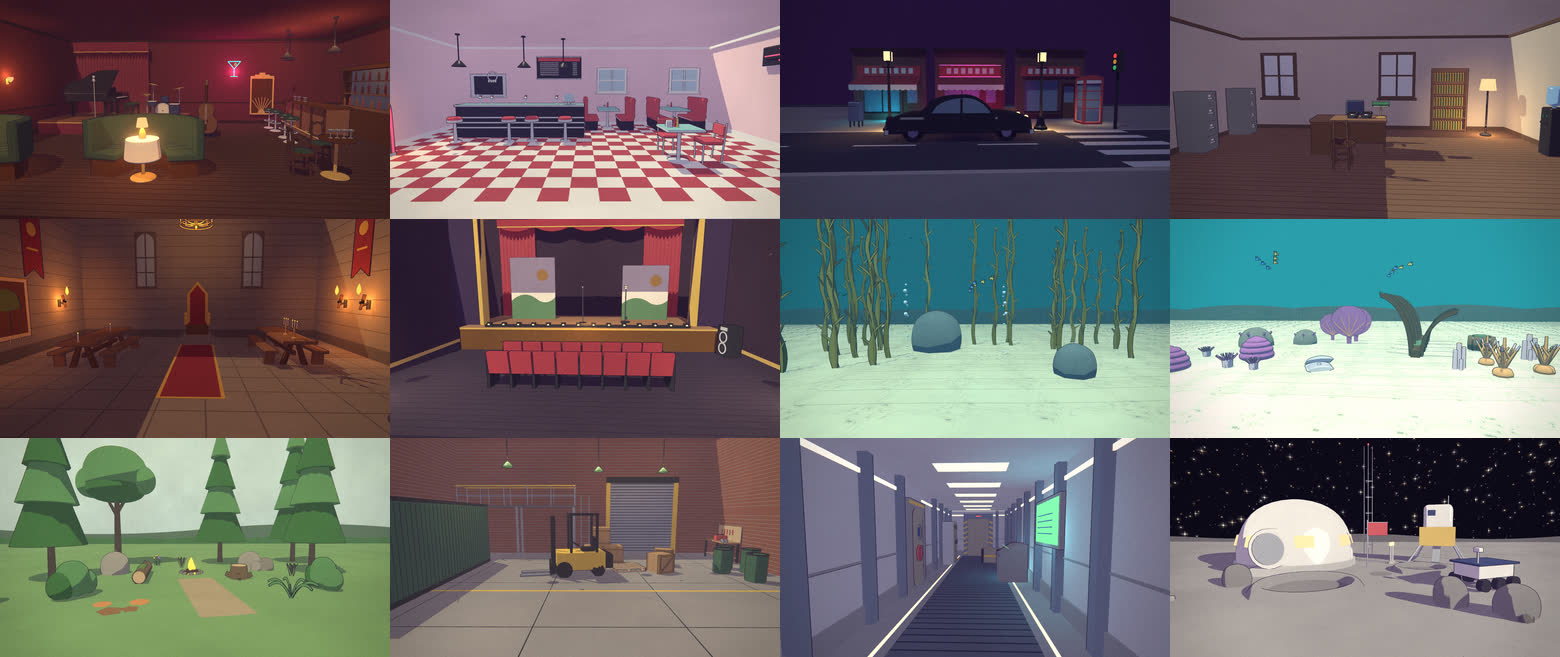
- A library of places. Thirteen kits of about two hundred pieces that take any style, from a 1940s jazz club and a 1950s diner to a coral reef, a castle and a moon base, and twenty lighting looks. Twelve whole places build from a few words, with their marks, cameras and lighting: “a 1940s jazz club” comes out as one. New set lists them beside your show's own, and a place the library does not know by name, a ROOFTOP or a NIGHT MARKET, is built from the place you pick, the nearest listed first.
- Add a piece. The library drawer shows every piece in your show's style, searchable by words and by shelf. Drag one in, and it stands where it belongs: on the floor, on a wall, from the ceiling or on the table under it.
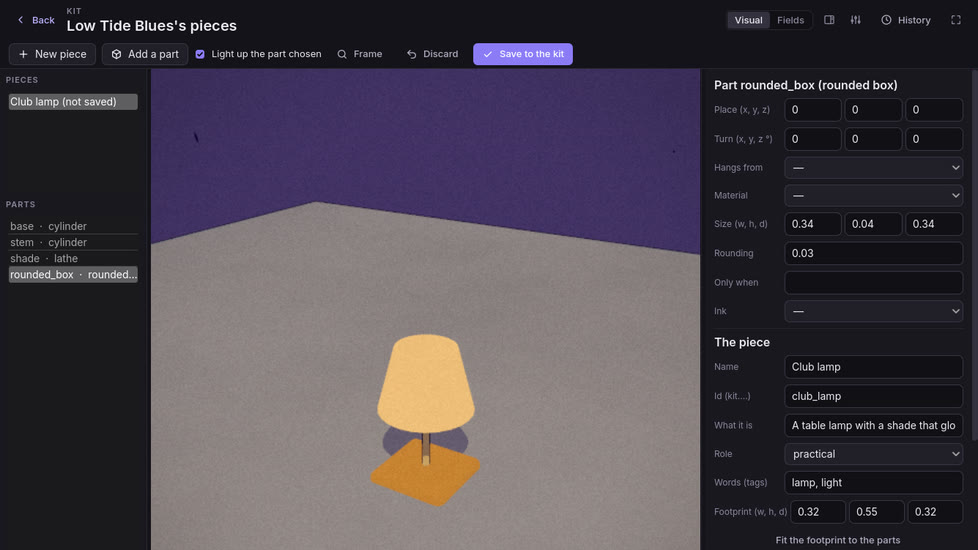
- Make one, or bring one in. The piece maker builds a piece from simple shapes, with its sizes, colors from your palette, seats and rules for where it goes. Bring in a glTF, GLB or OBJ model, or a PNG or JPEG as a standing cut-out, a decal, a painted flat or a 360° backdrop, and it is drawn in your show's style.
- Light it. Start from a look, turn the hour of the day, set the key, fill and rim, add fog or light rippling as under water, and light the lamps or the neon.
- Light that carries a mood. A lighting change fades over seconds or dims to a level, timed on the timeline. Haze, shafts of light, blinds and gobos, and a real sky with the sun and moon at their hour. The library's looks include moonlight through the blinds, a misty morning and a storm.
Your show's world
Every part of the show, yours to change by hand
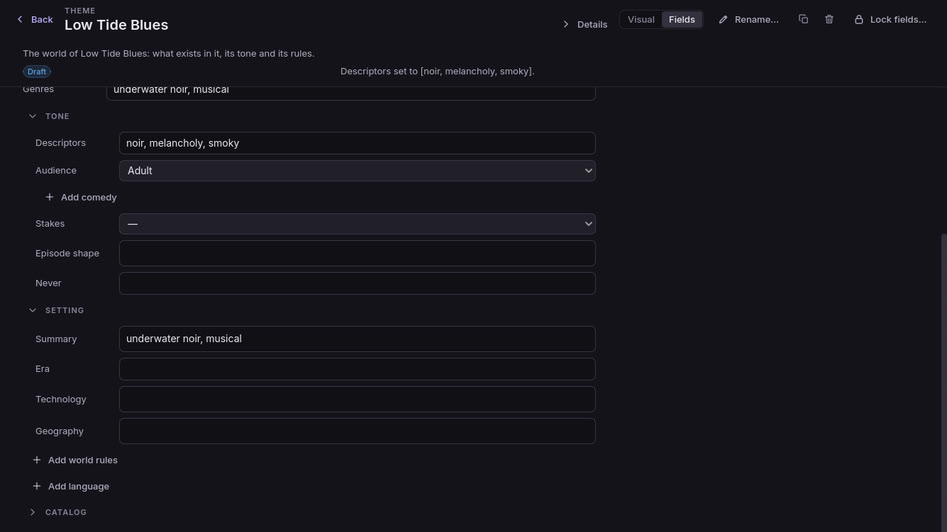
A show's look and everything in it are small, readable specs that Reelwright draws. Change any of them in Studio, write them by hand, or ask the showrunner.
- A control for every field. A document's Fields shows everything it can hold: the theme's tone and audience, the bible's entries, characters, sets, props, effects, sound recipes, outlines and styles. Each edit is in History, and Ctrl+Z takes it back.
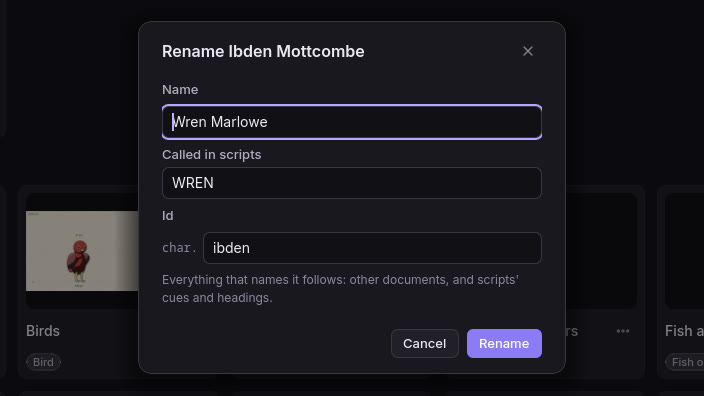
- Rename it, and everything follows. A rename takes every reference with it: other documents, an episode's folder, and the scripts' cues and scene headings. Duplicate copies anything.
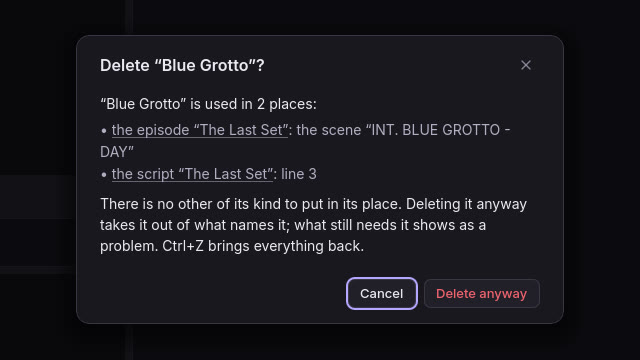
- Delete with care. Deleting something still in use asks first, lists exactly what uses it, and offers another of its kind to take its place.
- Props that look like what they are. A prop a script names is drawn as the thing it is, from a library of what scripts handle most: “red lantern” is a paper lantern painted red, “Mei's phone” a phone, “a cup of tea” a mug, “a gift box” a present with a bow. A thing the library lacks is drawn as the set piece it is, so “the counter” is a diner's counter. Each is sized as the thing is and held by its own grips.
- Props, effects and graphics. Props are made from recipes with grips and states, and effects such as smoke, sparks, confetti and rain from emitters. New makes one from a template, or a copy of any pattern.
- A library of sounds. Ctrl+9 opens Sounds: the show's sound effects and music, with what uses them. Play any of them, make one from a recipe, or bring in a WAV, Ogg, MP3 or FLAC.
- Locks and roles. A locked field shows its lock and says why. Viewers and reviewers of a shared show look, and change nothing.

Showrunner Optional
Bring in Claude as your showrunner
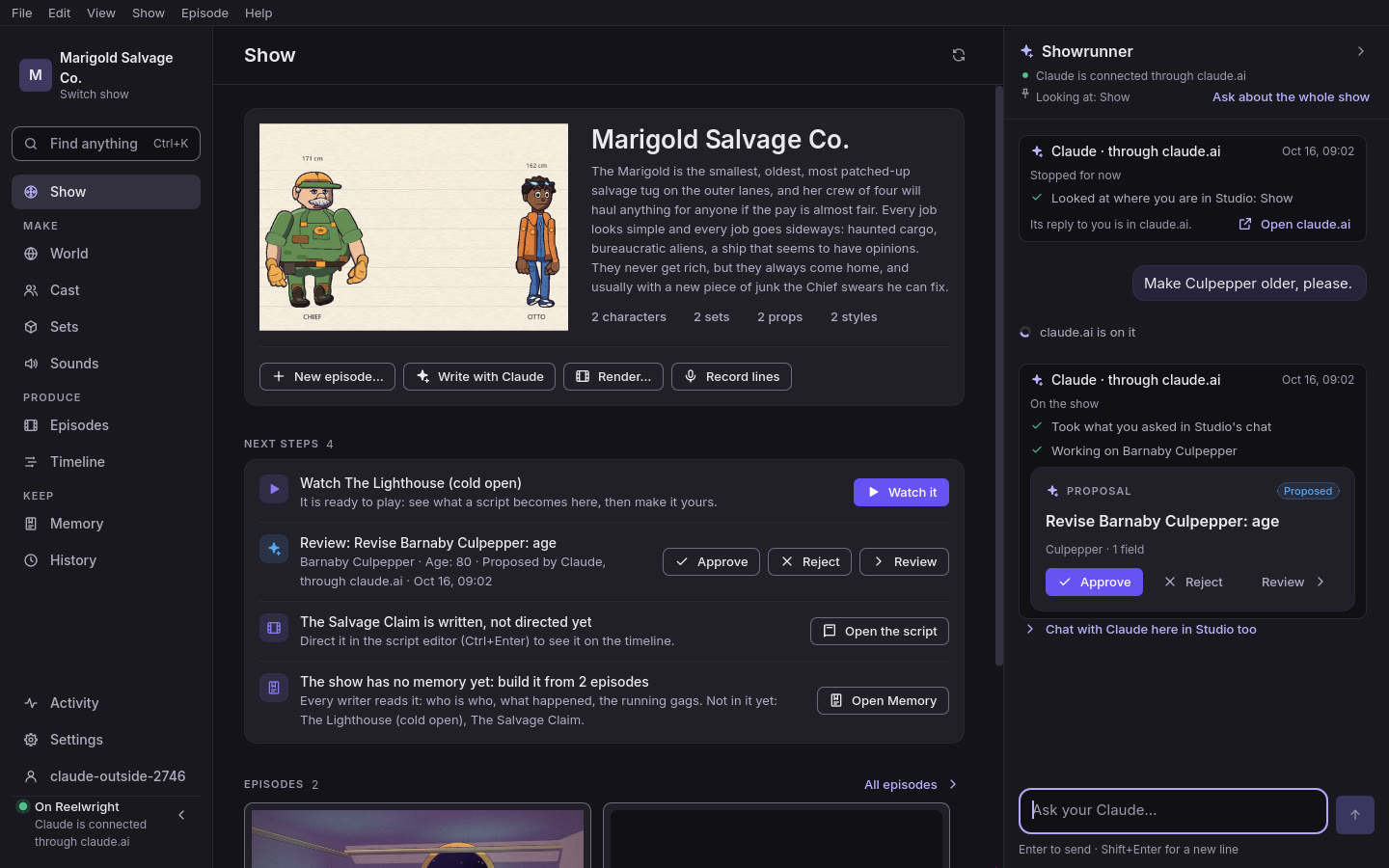
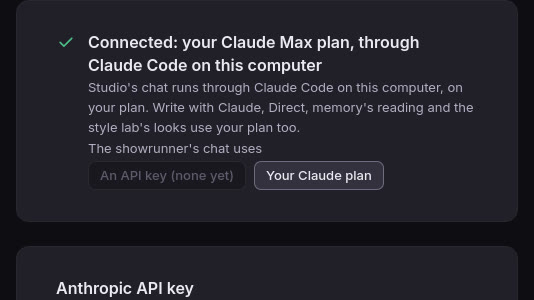
Connect the Claude you already have, with no API key, and a showrunner that knows your show joins you. It works with the same tools you do, and nothing it suggests is written until you approve it. Settings › Claude (Ctrl+,) says at its top how Claude is connected, and Studio's chat and rail say when it is working on the show.
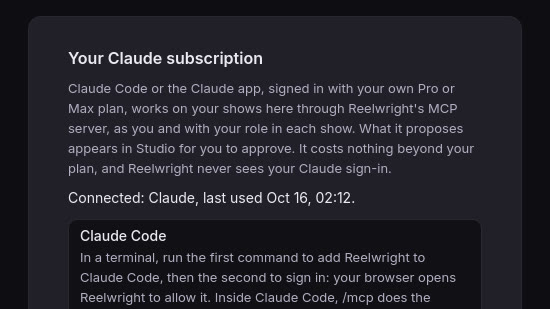
- Your own Claude, no key. Add Reelwright to claude.ai or the Claude app as a connector (Studio fills in the address), or to the Claude Code on your computer. Ask it to direct an episode, write, keep the show's memory or find a look, and it does it on your own plan. What it does shows in Studio's chat as it does it, and its proposals wait there for you.
- The chat is your Claude's. With claude.ai or Claude Code connected, Studio's chat leads with it: the things to ask go to your Claude, the line under the box says where Enter sends your ask, and the header says “Claude is connected through claude.ai · working on the show now” while it works. To start it there, type /mcp__reelwright__here and what you want in Claude Code, or press + in claude.ai and find Reelwright under Connectors: it gets the show's next steps and where you are in Studio.
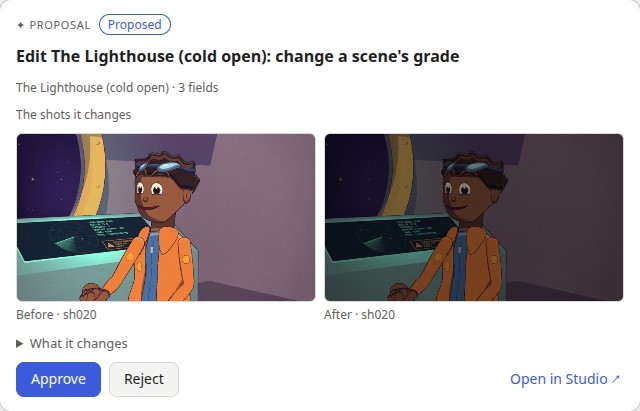
- Approve where you asked. In claude.ai and Claude Desktop, a change Claude proposes shows as Reelwright's card right in the chat: what it changes, field by field and why, and for an episode the changed shots' stills, before and after. Approve, Reject or Open in Studio there, without switching to Studio, and with several options pick one and reject the rest. The card follows the chat's language and its light or dark theme.
- Ask in Claude Code from Studio. On the desktop, once Reelwright is added in Claude Code, what you ask your own Claude in Studio's chat opens Claude Code in your show with it typed in: press Enter there to send it.
- Studio's chat on your plan. On the desktop, with Claude Code signed in with your Claude plan, Studio's own chat runs on it. Reelwright never sees your Claude sign-in.
- A key, if you prefer one. An Anthropic API key is an option, on the desktop or the web. It is checked with Anthropic before it is kept, shown by its last four characters, and on the web kept encrypted for your account only. You pay Anthropic as you go, and an admin can set each person a monthly cap.
- Proposals, not surprises. Every change arrives with a field-by-field diff and previews: a model sheet, a set's views, a storyboard. Approve, reject, lock or undo. Every approval is a commit in the show's git history.
- It sees what you see. Each message carries what you have open: the script lines you selected, the shot at the playhead, or the character in front of you.
- Costs in plain sight. On a key, the chat shows what each turn cost, and the show's budgets per request, per episode and per month stop it before it overspends.
Claude is optional. Everything else on this page works without it.
Render
Finished episodes, rendered on your computer
Reelwright renders with the Godot engine: flat, cel-shaded characters with ink lines, on lit 3D sets, in your show's style.
- Voices included. Kokoro voices every line you did not record, on your computer, in each character's own voice, and Rhubarb lip-syncs every mouth.
- Mixed to broadcast loudness. Dialogue, effects and music are mixed to −16 LUFS and encoded to an H.264 MP4, with its captions as WebVTT. A preview is a quick, light copy; a full render is the master.
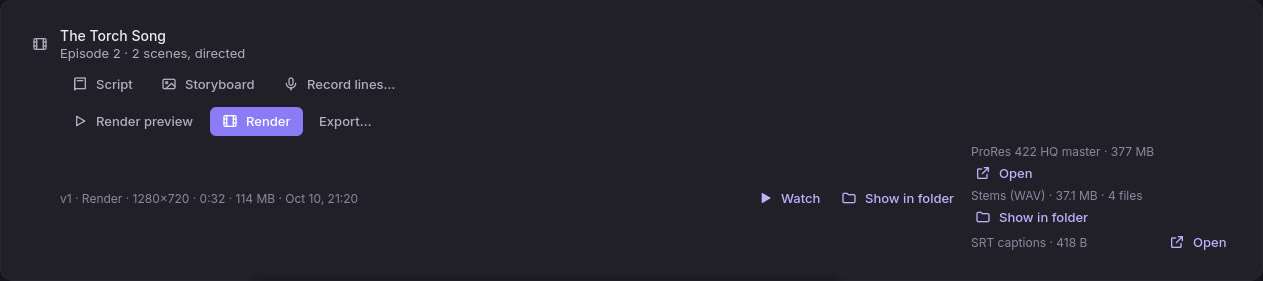
- Delivered to spec. A show can be 16:9, 9:16, 1:1, 4:3 or 2.39:1, and run at 23.976, 29.97 or 59.94 frames a second as well as whole rates, timed exactly. A render can also deliver a ProRes 422 HQ or 4444 master, PNG or OpenEXR frames, stems of the dialogue, music and effects as 24-bit WAV, SRT captions and an OpenTimelineIO edit.
- Titles and credits. An episode opens on its title card and closes on its credits, set in the style's fonts and colors from the screenplay's title page.
- Lower thirds. Name someone on screen, a name and a line under it, drawn in the look's own typefaces and colors as a bar, plain words or a boxed card. Add one at the playhead, or let the director introduce each character the first time they appear; a script's
SUPER:becomes one too. - Footage on a screen. Bring in a clip and play it on a set's screen, frame for frame, its sound coming from the screen. Render the same episode at another frame rate (a 24 fps show at 25 or 29.97) with its timing and lip sync kept.
- Over anything, with alpha. Render with straight alpha, as PNG frames or a ProRes 4444 master, and a see-through stage draws the cast and the furniture with no walls, floor or backdrop, ready to lay over footage in your editor. A frame export lists every frame with its checksum, the stems trimmed to the range, and what drew them.
- The same show, the same frames. Rendering is deterministic: the same specs and seeds give the same episode, frame for frame.
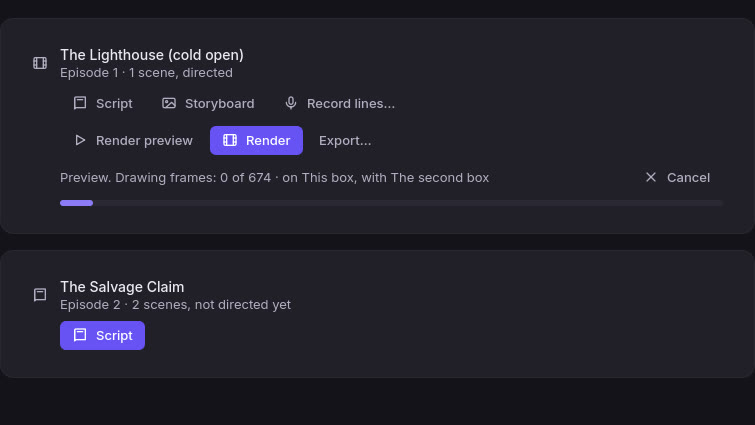
- A render queue. Start as many renders as you like, previews, full renders, exports and dubs of any episode, and they wait their turn on the Episodes page. Move one up or down, pause it or the whole queue, or cancel it. Each says its stage, the frames drawn and the time left, and when it ends, how long it took. Export… asks for the master, the frames or the stems once, and each is listed under the render with its size.
- A stopped render goes on. Close Studio, or lose the computer mid-render, and when the show is open again the render goes on from the frames it drew and checked, not from zero. The video comes out byte for byte as one drawn in one go.
- Failures in plain words. Before anything is voiced or drawn, a render checks it has what it needs, that the episode compiles and that the disk has room. If it fails, it says what happened and what to do next: try again, free space, open the log or open the script. A full disk says where, and how much room the render needs; a renderer that stopped says at which frame and in which shot.
- Every render a version, reviewed on the frame. Each render is kept as the episode's next version, with what changed since the last, line by line and shot by shot. Watch opens the review player: scrub to the frame with J, K and L, loop In to Out, compare two versions side by side or as a wipe, and approve one. Notes go on a frame or a range, with arrows, circles and pen strokes drawn on the picture, and export as a PDF or a CSV with timecodes. Invite a reviewer to comment without editing.

Reelwright Runner
Let your own computer do the heavy work
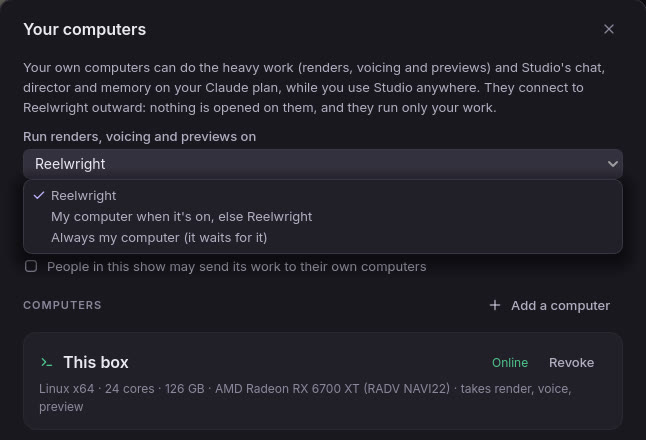
Use Studio in a browser from anywhere, and let a computer of yours render, voice and draw the previews. It connects to Reelwright outward, nothing is opened on it, and it runs only your work.
- Pair a computer. Your computers, in either edition, gives you a code for the runner on your machine. In the installed Studio, signed in, it is one switch: “Let this computer run my Reelwright work”.
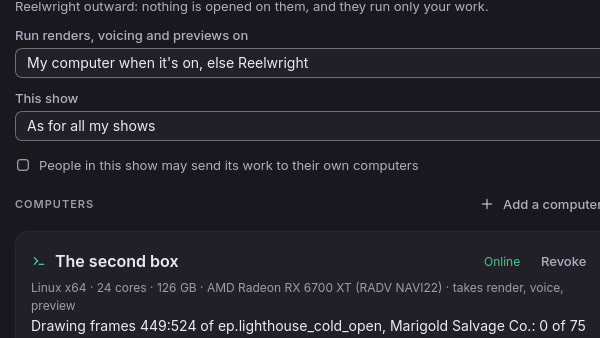
- Choose where work runs. On Reelwright, on “my computer when it's on, else Reelwright”, or “always my computer”, for all your shows or just one. Episodes says where each render is running.
- Renders and previews on your GPU. A render sent to your computer runs there on its GPU, and only the files the other side lacks move. A dropped connection picks up where it left off. Model sheets, set views, stills and storyboards are drawn there too.
- A farm of your own. With several of your computers on, a render is shared out between them, and the lead machine puts the episode together.
- Your plan, your disk. With Claude Code signed in there and your chat on your plan, the model director and memory run on your Claude plan too. A runner can also offer the shows on its own disk to the web Studio.
- Only what you allow. Jobs are signed by Reelwright and checked by the runner, which writes only in its own folder. A shared show's work goes to an editor's computer only if its owner allows it. Revoke a computer at any time.
Everywhere
The same Studio, wherever you work
On Linux, Windows and macOS, or in a browser, Studio works the same way and keeps your place.
Switch shows at once
Ctrl+Shift+O lists your recent shows, with their pictures and what changed since. The show you leave keeps rendering or voicing, and each comes back where you left it: the section, the script with its unsaved text, the playhead.
Every key on one sheet
Ctrl+/ or F1 lists every key Studio answers to, by where it works, with a box to find one. Ctrl+K finds a document, a script or a command. On a Mac, the sheet says Cmd and Option.
A short tour
The first time Studio opens a show, a few marks point out the rail, the script and its read-along, the timeline's inspector and the showrunner. Skip ends it, and the palette brings it back.
In your browser
The same Studio runs in the browser at reelwright.diy/app, free to try: the timeline, previs, the set explorer, the character studio, the style lab, the booth, memory, and your own Claude. Share a show with a co-writer as an editor, or with a client as a viewer who watches and changes nothing. Sign in with a code sent to your email.
Linux, Windows and macOS
Studio comes with everything it runs on: no Node, Godot or Python to install. Builds are not signed by Microsoft or notarized by Apple yet, so the install steps say how to open them the first time.
Version 0.13.0 · out now for Linux, Windows and macOS
Your show, in plain files
A show is a folder of readable specs, Fountain scripts, voice takes and its memory, in a git repository where every approved change is a commit.
In plain words
Studio says what went wrong and what to do, in the words you use for your show. A crossed line puts the camera “across the line between Grandpa Huo and Mei, so they swap sides of the screen”, and a color off the style is “greyer than the style allows”. Asking for what is there already is no failure.
Its own from the first frame
Studio opens straight onto its own dark welcome screen, with no engine logo before it, on Linux, Windows and macOS as in the browser.
Easy to read, at any size
Hints and placeholders are clear against their backgrounds, and Settings › Appearance (Ctrl+,) sets the text size from 75% to 250%, at once. On a window under 1280 pixels, or an iPad, the side panels fold to their icons on their own, and stay as you leave them. In the browser, Studio zooms and pinches as any page does.
See it on your own computer
Reelwright Studio comes with a demo show to open, change and render, and runs without an account.